 PS Evolution
Tribal Wars auto defense: automatic support snipe and cancel snipe
Auto Defence brings the account's two automatic defenses together on one screen, in two tabs. "By support" watches incoming attacks, picks which commands deserve a snipe according to your rules, looks through the group's villages for origins that arrive on the right millisecond and puts the commands in the send queue. "By cancelling" runs the cancel snipe on its own, with the troops of the attacked village itself.
Use it when you won't be watching the account when the noblemen land. It requires an active Premium Account in the game and the session connected.
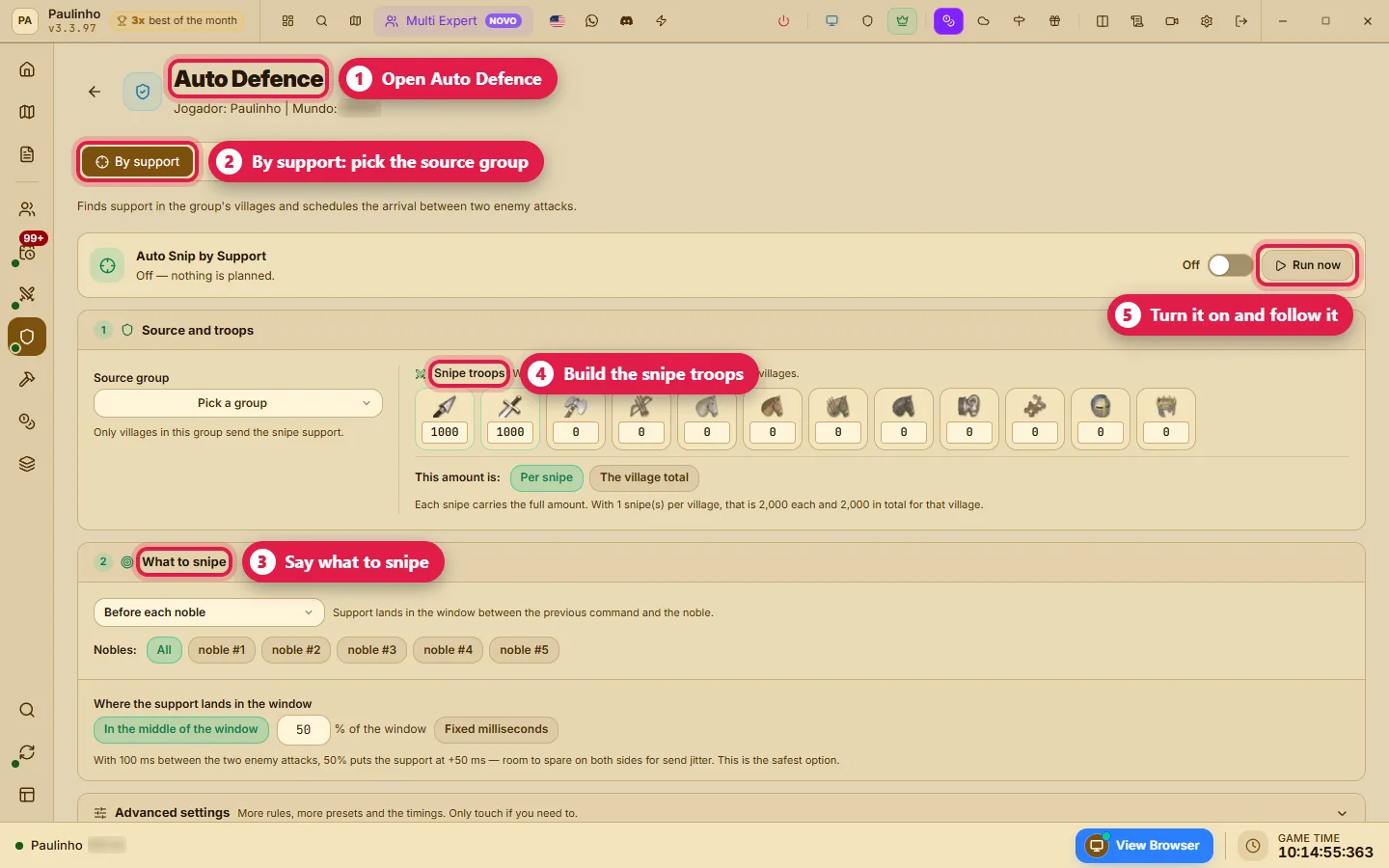
Step by step
-
Open Auto Defence
In the account sidebar, click Auto Defence. The tab you left open is remembered for next time. A tab that is turned on shows the green "On" dot.
-
By support: pick the source group
On the By support tab, under "Source group", pick the game group whose villages will send the support. With nothing picked, every village counts.
-
Say what to snipe
Under "What to snipe", pick the rule: "Any command" (always finds a target), "Before each noble", "After noble N" (with 5 noblemen in the train, after the 4th), "Biggest gap before the noble" or "Labelled commands", which uses the Tagger's labels.
-
Build the snipe troops
Under "Snipe troops", create the preset with what each snipe should gather. Under "This amount is:" pick "Per snipe" (each snipe takes the full package) or "The village total" (split among that village's snipes). With several presets, the app uses the first one that fits the available troops.
-
Turn it on and follow it
Turn on the switch in the header. The app shows the countdown to the next scan, the "Planned snipes" list (with how much was already delivered) and the "History" with the reason for each decision. "Run now" forces a scan, and "Cancel" on a snipe removes from the queue what has not left and cancels in the game what already left.
-
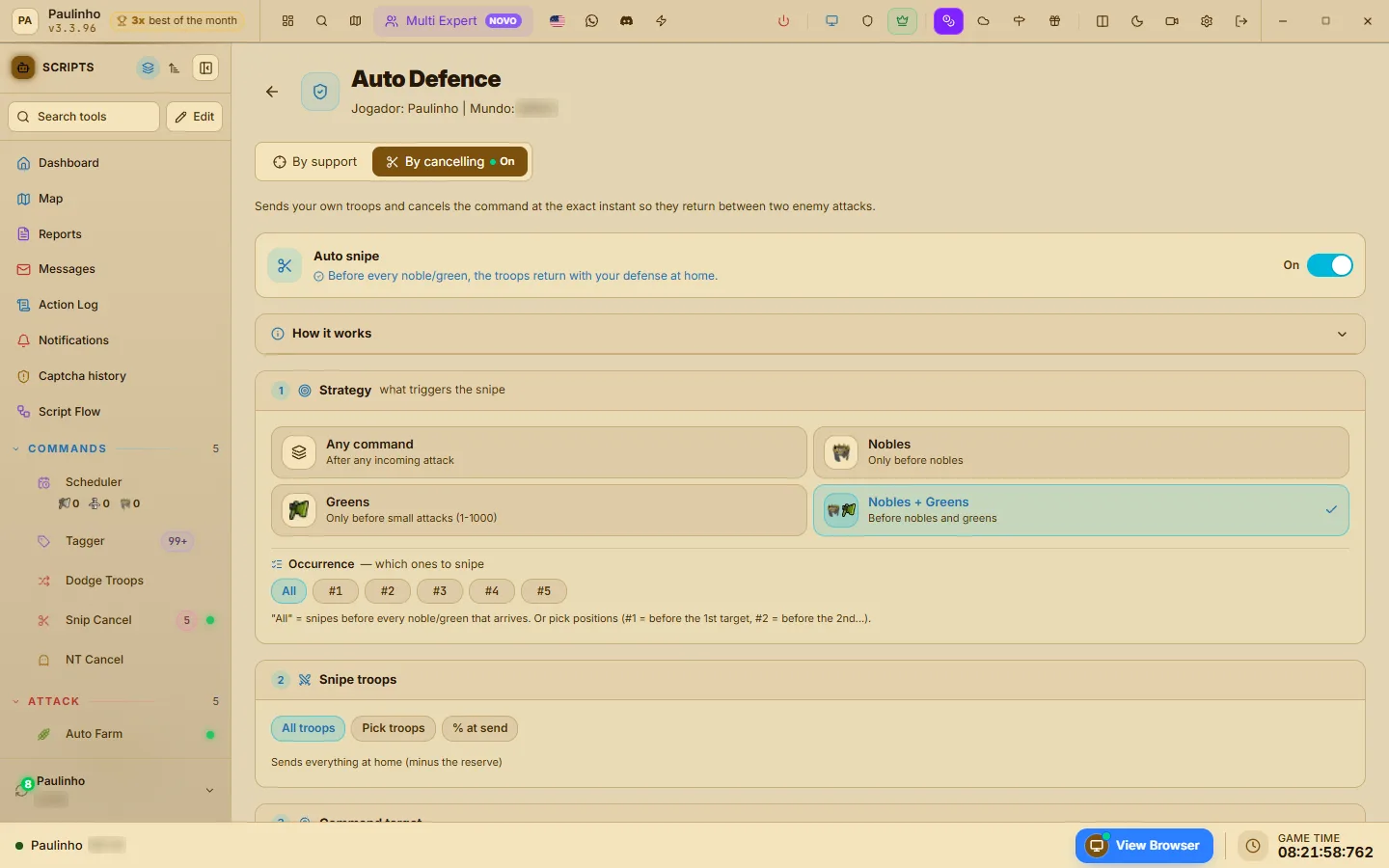
By cancelling: pick the strategy
On the By cancelling tab, under "Target", pick "Any command", "Nobles", "Greens" (small attacks, from 1 to 1000) or "Nobles + Greens". Under "Occurrence", leave "All" or pick positions (#1 is the first command or the first target). The "Summary" tells you in one sentence what will happen.
-
Troops, target and limit per village
Pick the troops (all, chosen ones or a percentage at send time), the reserve that stays home, the target ("Nearby village" or "Fixed coordinate") and the "Max per village". Turn on the switch. It checks incoming attacks every 90 seconds.
What the screen looks like
What each option does
| Option | What it is for |
|---|---|
| Where the support lands in the window | In the middle of the window (the safest), at fixed milliseconds after the command, or at a percentage of the window. |
| Max snipes at a time | Safety lock: how many snipes the app can plan in a single scan. |
| Minimum lead | Ignores arrivals closer than this time. |
| Minimum fill (%) | How much of the preset must be met for the snipe to count. |
| Affliction bonus (%) | If the world has affliction and you know the value, fill it in. If you don't know, leave 0. |
| Scan interval (s) | How often the app rereads the attacks. 120 seconds is a good number. |
| Send what fits now and top it up later | Without troops for the whole preset, it sends what fits and tops it up on the following scans. |
| Cancel a command that would arrive outside the window | If the departure is late and the support would land after the nobleman, the command is canceled so the troops come back. |
| Include last command (dodge) | In cancel mode, it also schedules after the village's last command: the troops come back right after it, on any millisecond, like a dodge. |
Tips
- Start with a single rule and a single preset. "Advanced settings" is collapsed on purpose: only touch it if you need to.
- The support snipe goes into the Scheduler queue and needs about 60 seconds of preparation before each departure. Origins that would leave sooner than that are left out.
- In cancel mode, the app only schedules when the command is less than 20 minutes from arrival. Before that it keeps monitoring.
- Margin, fine tune and attempts for cancel mode come from the manual snipe preferences, on the Snip Cancel screen.
Common problems
I see "Pick the source group first" or "Set the snipe troops first".
Auto Snipe by Support only plans with a group and a preset set. Pick the group (or all villages) and create at least one troop preset.
The support snipe delivered fewer troops than I asked for.
The snipe card shows how much was already delivered. While troops are missing, the app schedules reinforcement on every scan, up to 3 reinforcements per snipe.
The automatic cancel snipe didn't schedule a command.
It only schedules commands less than 20 minutes from arrival, never duplicates a command that already has a snipe, and ignores windows that start in less than 90 seconds.
Nothing turns on in Auto Defence.
Look for the "Premium Account required" warning at the top. Without active premium in the game, both tabs open but don't run.
See also
Do not have PS Evolution yet?
The download is free: download it, create your account inside the app and try everything for 24 hours, no card.