 PS Evolution
Tribal Wars cancel snipe: how to snipe automatically
In a cancel snipe you send troops out of the attacked village and cancel the command at the right instant, so they get home between two enemy commands, for example between the clearing attack and the nobleman. By hand, it comes down to milliseconds. PS Evolution handles the send, the cancel and the check on its own.
You schedule from the Tagger (one command at a time or in bulk) or let Automatic mode pick the commands. The Snip Cancel screen shows scheduled snipes, logs with the return verified in the game, and the account's precision.
It requires an active Premium Account in the game and the account session connected.
Step by step
-
Understand the math the app does
The game lets you cancel a command for a few minutes after sending it (the "World window", which the app reads from the world settings, usually 10 minutes). Once canceled, the command returns taking the same time it had already traveled: sent at S and canceled e seconds later, the troops get home at S + 2e, on the same millisecond as the send. Example: sent at 11:52:00.550, canceled 4 minutes later, back at 12:00:00.550.
Understand the math the app does -
Pick the command in the Tagger
Open the Tagger, Attacks tab, and click "Snip Cancel" on the row of the command after which the troops should come back (for example, the attack right before the nobleman). The same button shows on the Map, when you click the village, in the "In game (live)" block.
-
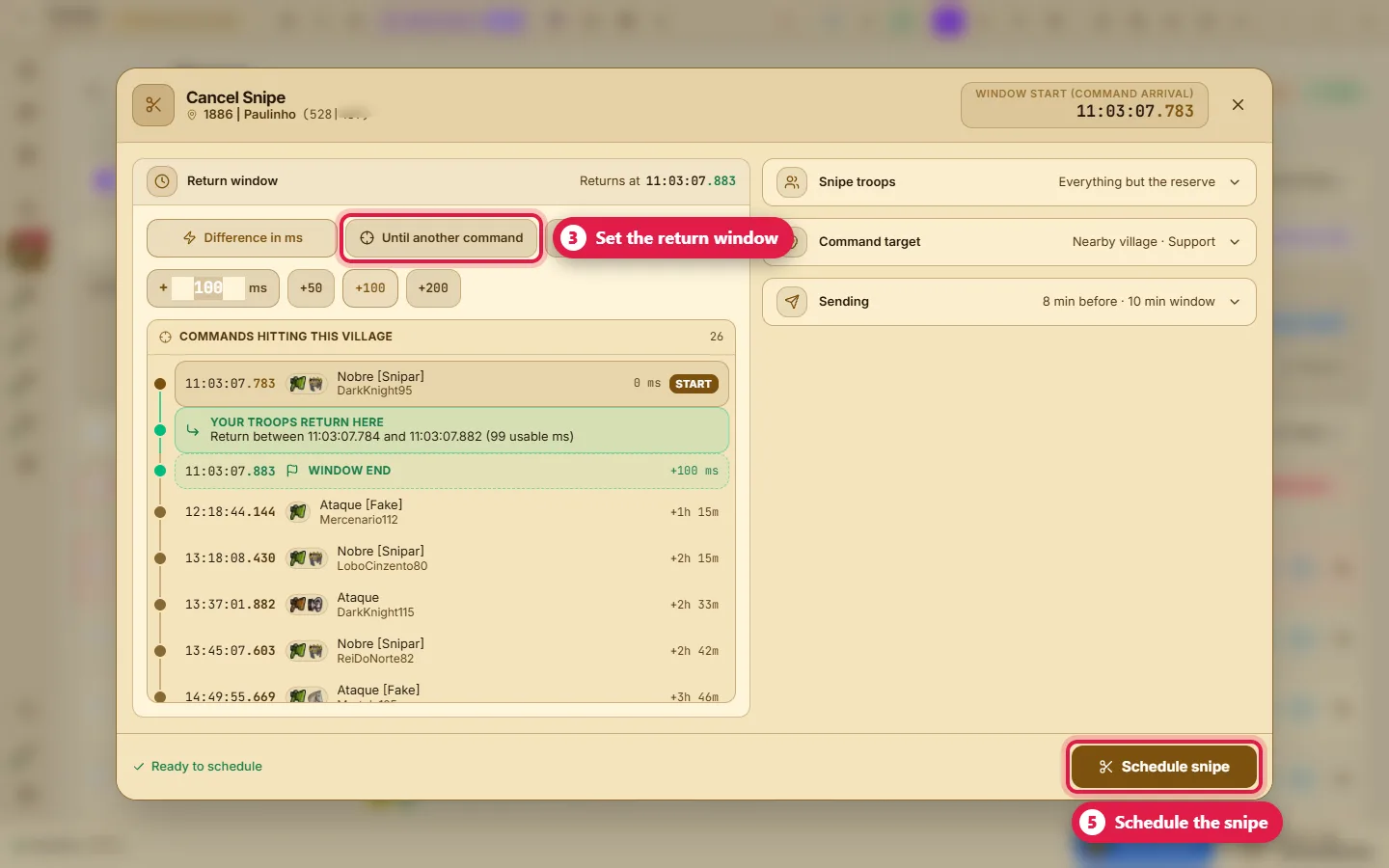
Set the return window
In the "When the troops return" step, the window starts at the arrival of the chosen command. For the end, use "Until another command" (click the next command on the timeline, like the nobleman), "Manual time" or "Difference in ms". The summary shows "Return between ... and ..." with the usable milliseconds.
-
Set troops and target
In the "Troops, target and tuning" step, pick "All troops" (minus the reserve) or "Pick troops", the reserve that never leaves, the target ("Nearby village", resolved on its own, or "Fixed coordinate") and the type, Support or Attack. This step is optional: the app uses your last choices.
-
Schedule the snipe
Click "Schedule snipe". The app starts sending a few minutes before the command ("Start sending", 8 minutes by default and 19 at most), checks the recorded millisecond of each send and, if it does not fit the window, cancels right away and resends until it gets it right.
-
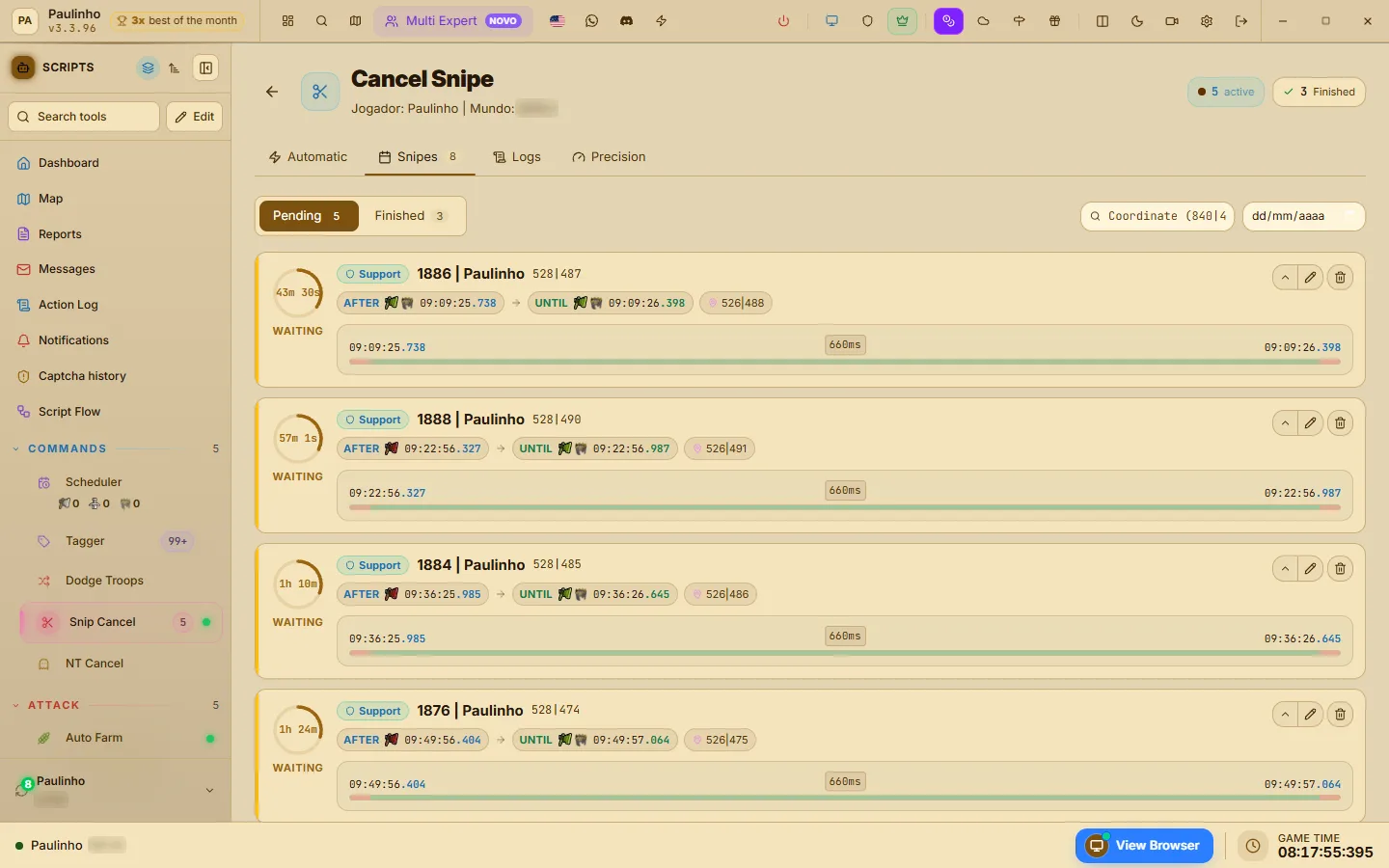
Follow it on the Snip Cancel screen
On the Snipes tab you see each snipe with send, cancel time, planned return and status (Waiting, Sending, Armed, Cancelling, Done). The Logs tab shows the return verified in the game after each snipe.
-
For several villages, use bulk mode
On the Tagger's Attacks tab, the "Snip by Cancellation" button opens bulk scheduling: check the villages, choose "After command" (1st, 2nd...), load each village's troops and click "Schedule". Commands that already have a snipe are skipped.
What the screen looks like
What each option does
| Option | What it is for |
|---|---|
| Window end | Until another command, manual time (HH:MM:SS.mmm) or a difference in ms after the reference command. |
| Snipe troops | All troops minus the reserve, or the exact amount of each unit. You can save presets. |
| Command target | Nearby village (the app picks it) or a fixed coordinate of yours. |
| Start sending | How many minutes before the command the attempts start. 19 minutes at most, so the cancel fits in the world window. |
| World window | How long the world lets you cancel a command. Read from the world settings. |
| Edge margin | Distance in ms from the return to the commands at the window edges. Shrinks on its own in tight windows. |
| Fine tune | Shifts the trigger within the target second. 0 is the middle. |
| Max attempts | How many times the app resends until the millisecond fits. Default 25. |
Tips
- The wider the window, the easier it fits. With noblemen landing 100 ms apart, the app can still make it, but it may need more attempts.
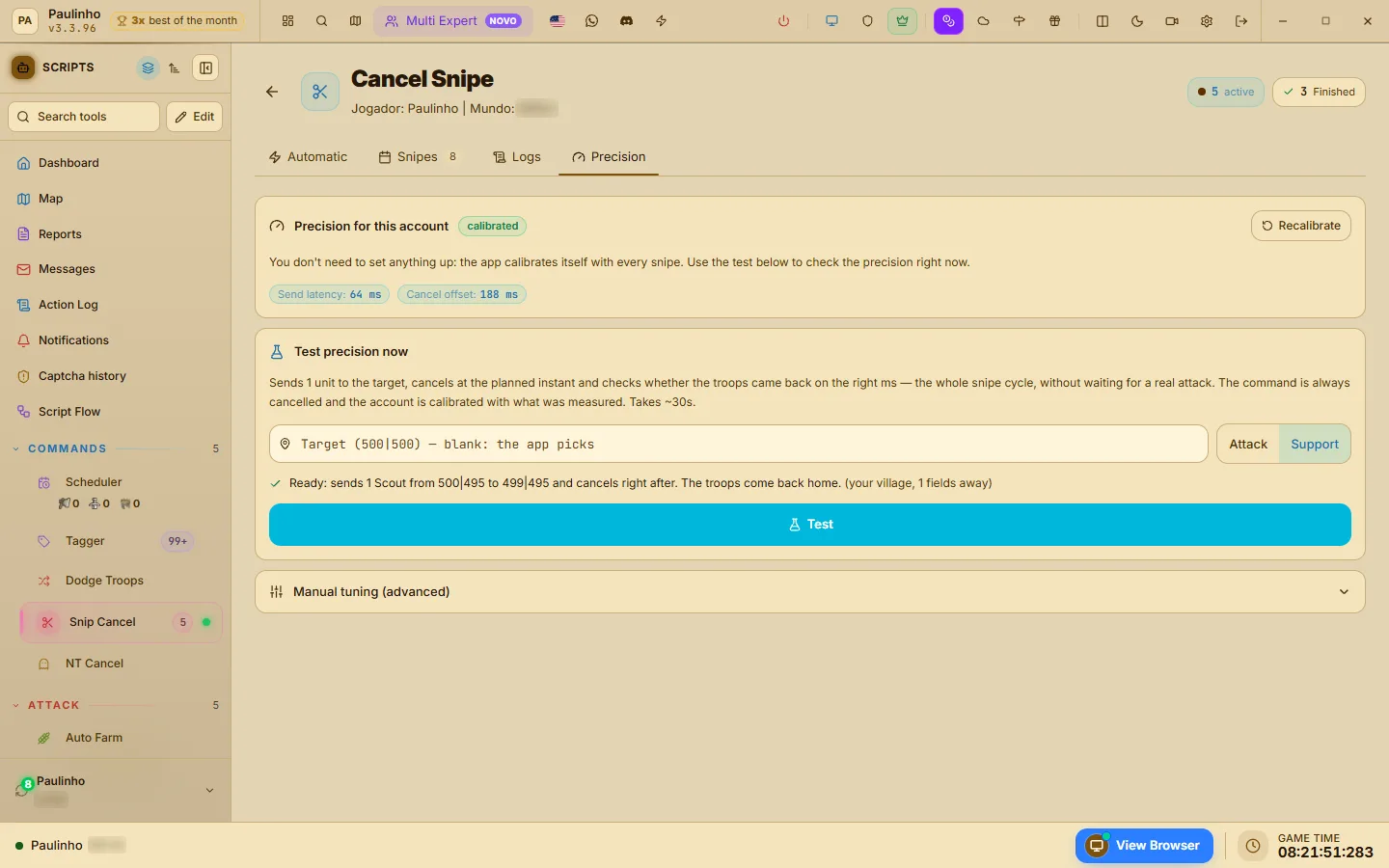
- On the Precision tab, use "Test precision now": the app sends 1 troop, cancels and checks that it came back on the right millisecond, without waiting for a real attack. It takes about 30 seconds.
- Changed your internet or proxy and the snipe started missing? Click "Recalibrate" on the Precision tab so the app measures the connection from scratch.
- Unstable connection: apply the "Unstable connection" preset in Precision, which raises the margin and the attempts.
Common problems
The snipe ran out of attempts and failed.
The window was too narrow for the send milliseconds to fit. Raise "Max attempts" or start sending earlier to get more attempts, and check the account's precision on the Precision tab.
The return landed outside the window.
Check the verified return on the Logs tab, run "Test precision now" and, if you changed network or proxy, use "Recalibrate". The app learns the send latency and the cancel timing on its own with every snipe.
I got "Could not cancel command". What now?
Cancel the command by hand in the game, on the village screen, while the cancel window is still open.
I want to drop a snipe that was already sent.
On the Snipes tab, click "Remove". With the troops in transit, the app cancels the command right away and they come back.
The snipe doesn't run on my account.
Without an active Premium Account in the game the tool does not run (the warning shows at the top). The session also needs to be connected to send and cancel precisely.
See also
Do not have PS Evolution yet?
The download is free: download it, create your account inside the app and try everything for 24 hours, no card.