 PS Evolution
Defender OP Mode: how to get ready to defend an op in Tribal Wars
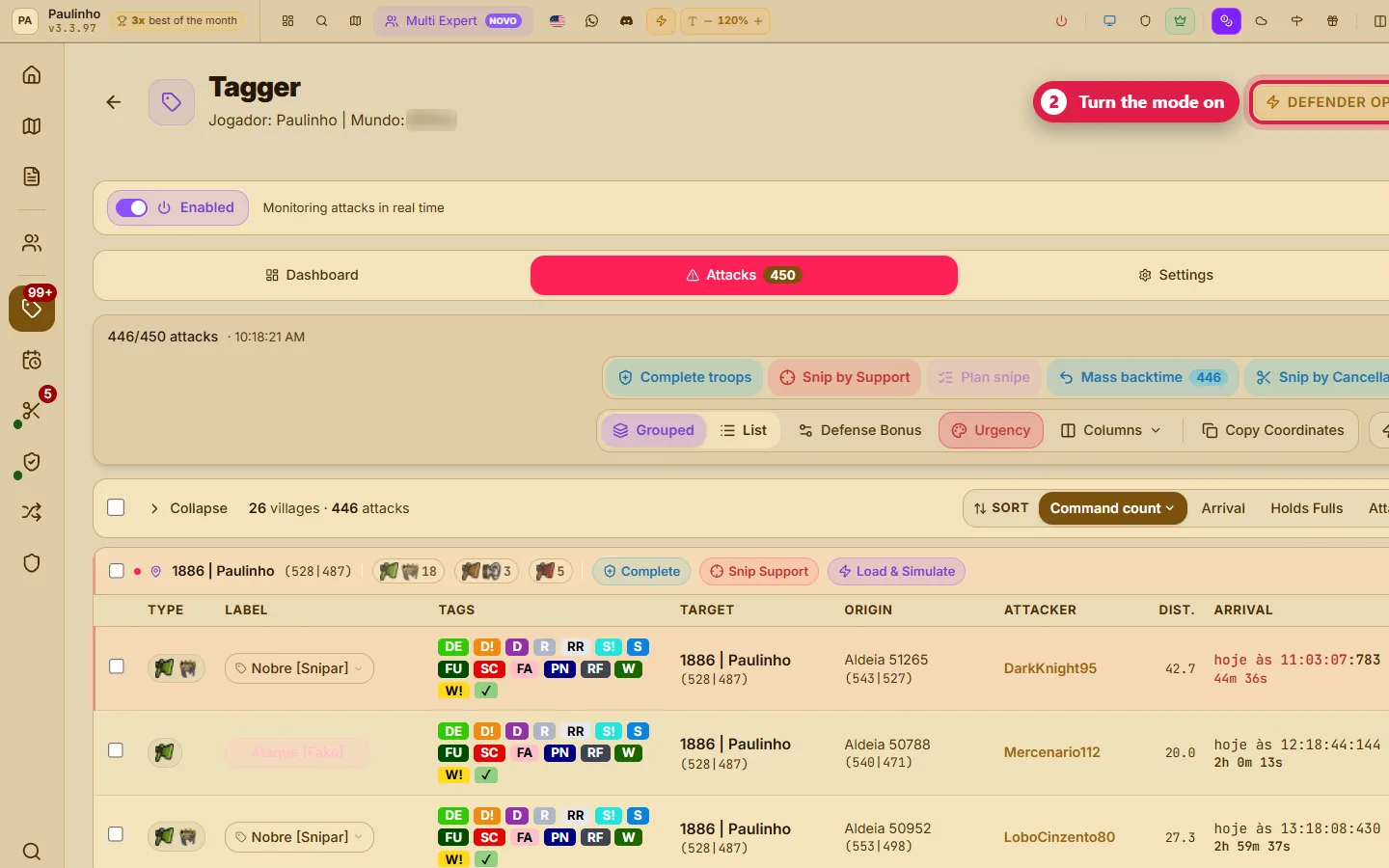
When the op starts, you need little on screen and quick reading. Defender OP Mode simplifies the interface for live defense: the side menu shows only the defense tools, the interface is enlarged, and that account's non-defense automations are turned off.
The mode is per account: each account remembers whether it was left on, so you can keep it on only for the account you are defending.
Step by step
-
Go into the account you will defend
The button only shows inside an account. Click the account name to open its tools.
-
Turn the mode on
Click Defender OP Mode (lightning icon) in the top bar, next to Community, or in the Tagger header. In a narrow window, the button shows only the icon.
-
Use the simplified menu
The side menu now shows only Tagger, Scheduler, Snip Cancel, Auto Defence, Dodge Troops and Smart Support, in a fixed order. The Tagger opens straight on the incoming attacks tab.
-
Adjust the text size
With the mode on, the - and + buttons show in the top bar: the interface goes from 100% to 180%, starting at 120%. The top bar stays at normal size.
-
Turn it off when the op ends
Click "Defender OP Mode" again to go back to the normal menu. The automations the mode turned off don't come back on their own: turn each one back on from its own screen.
What each option does
| Option | What it is for |
|---|---|
| Menu in the mode | The menu tools are reduced to Tagger, Scheduler, Snip Cancel, Auto Defence, Dodge Troops and Smart Support. |
| Font control | Enlarges the app's interface (not the game browser) from 100% to 180%, in 10% steps. |
Tips
- When you turn it on, the app turns off Farm, Minting, Recruitment, Construction, Scavenging, Noble training, Paladin, Balancer, Premium Exchange and other automations for that account, so nothing competes with the defense for the account.
- Before the op, have the Tagger notifications set up and Dodge Troops with the right reserve: in the heat of the defense you only confirm.
- Defender OP Mode and Speed Rounds mode are never on together: turning one on turns the other off.
- Outside the mode, you can resize everything in Settings > Themes > "Interface size".
Common problems
I can't find the Defender OP Mode button.
It only shows with an account open. In a narrow window, look for the lightning icon in the top bar.
I turned the mode off and the Farm didn't come back.
That is expected: the mode doesn't turn anything back on when you leave. Open the Farm screen (and the other automations) and turn them on again.
See also
Do not have PS Evolution yet?
The download is free: download it, create your account inside the app and try everything for 24 hours, no card.