 PS Evolution
Tribal Wars attack tagger: how to label incoming commands automatically
The Tagger watches your account's incoming attacks list. On every check it uses the game's own "Label" button on new commands (that is what reveals whether a nobleman, ram or scout is coming) and alerts you on your computer, by sound, WhatsApp, Telegram or Discord.
On top of the automation, the screen becomes your defense hub: a dashboard with attacks by urgency, the full list with filters, quick labels and the buttons to dodge, snipe and complete each village's defense.
It requires an active Premium Account in the game, because the game only unlocks the incoming attacks list with premium. Without it, the screen opens and you can adjust everything, but the Tagger won't turn on.
Step by step
-
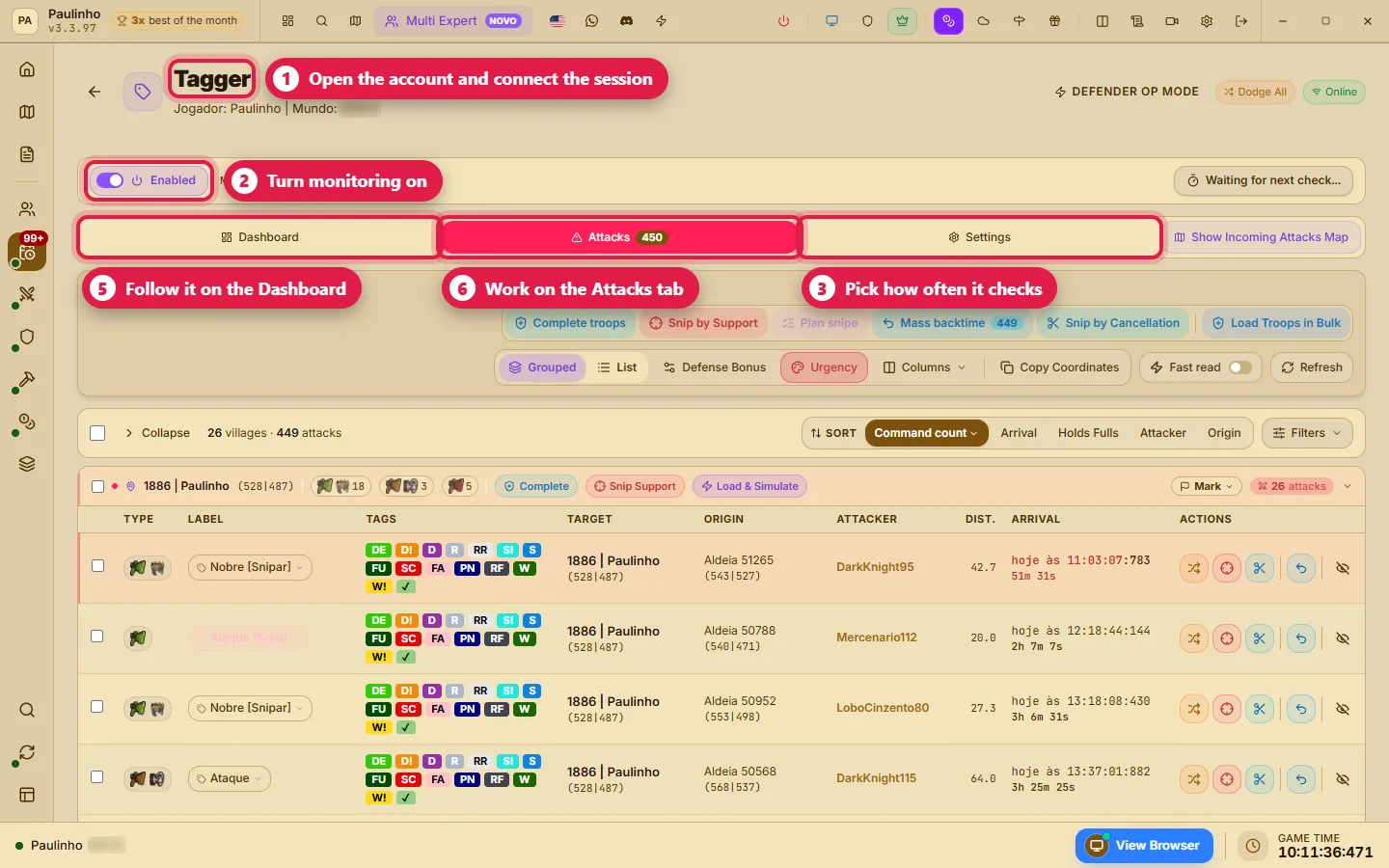
Open the account and connect the session
Click the account name to see its tools and go to Tagger. If you see "Session Offline", click "Connect Session Now": the Tagger only works with the account connected to the game.
Open the account and connect the session -
Turn monitoring on
In the bar right below the title, click the "Disabled" switch (or the "Click to enable monitoring" text). It changes to "Enabled", saves on its own and shows the countdown to the next check. There is no save button for turning it on and off.
-
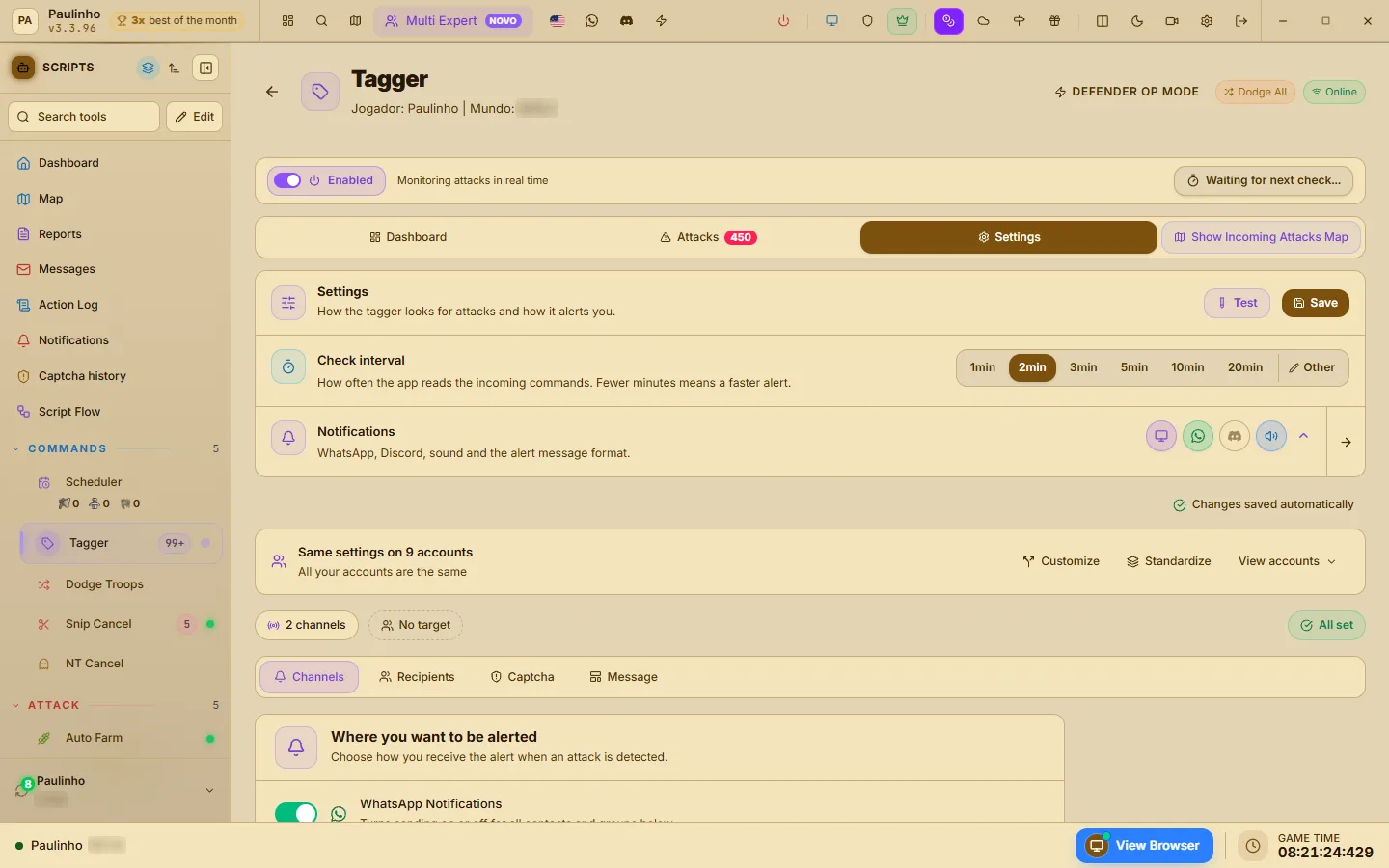
Pick how often it checks
On the Settings tab, under "Check interval", pick 1, 2, 3, 5, 10 or 20 minutes, or click "Other" to type a value (up to 1440 minutes). Fewer minutes means faster alerts. The app varies the interval a little on purpose, and the countdown shows the real time of the next check.
-
Choose how you want to be alerted
Still in Settings, open the "Notifications" row to turn on the computer alert, the sound alarm, WhatsApp, Telegram and Discord, pick which command types trigger alerts, and set the message format. Use "Test" to make sure the alert arrives.
-
Follow it on the Dashboard
The Dashboard tab sums up the situation: "Next attack", "Critical (30min)", "Urgent (2h)", "Nobles" and "No dodge", plus triage by threat type, the villages under pressure and the most active attackers. Clicking a card takes you to the list, already filtered.
-
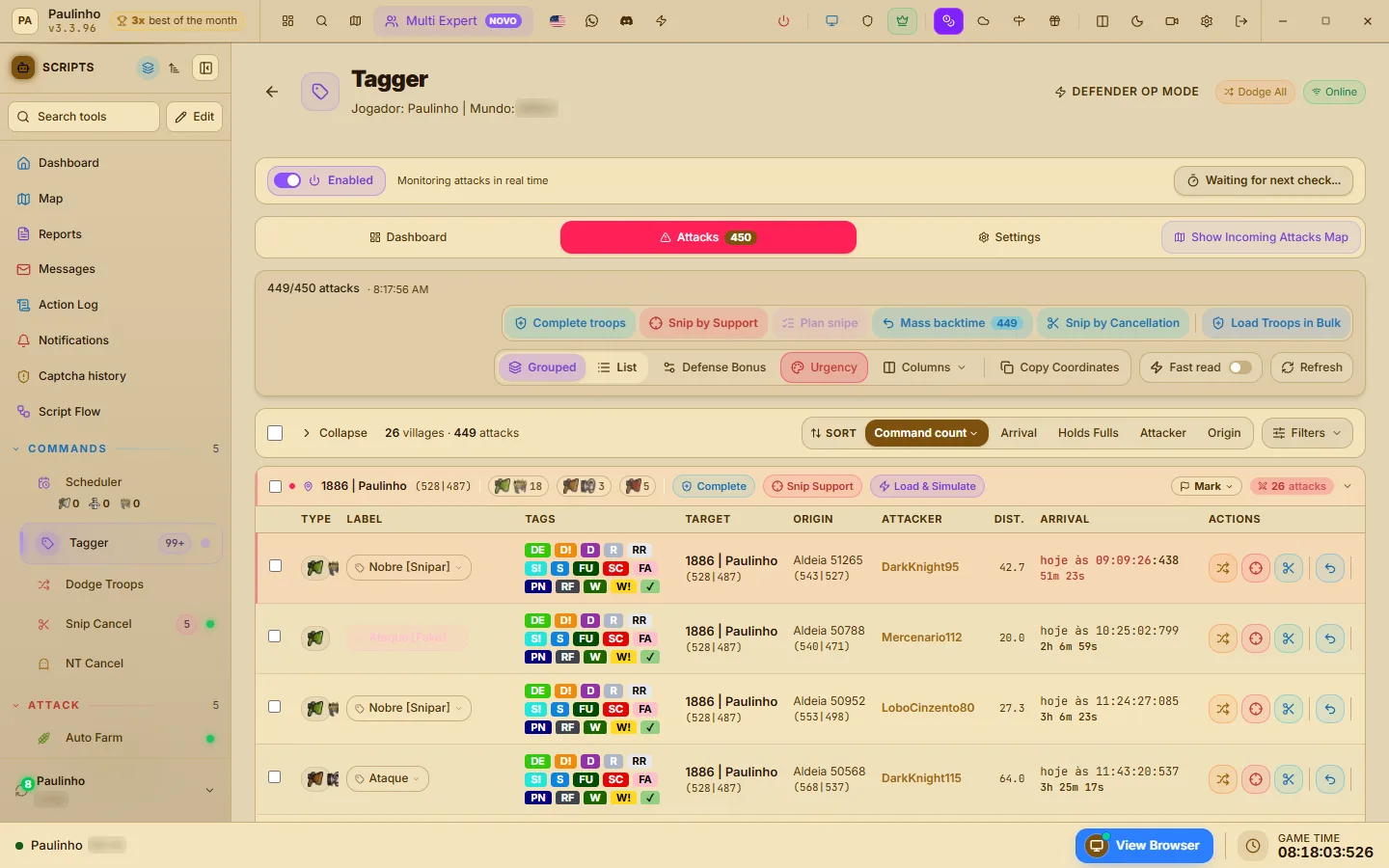
Work on the Attacks tab
The Attacks tab shows each command with type, label, target, origin, attacker and arrival. Use "Grouped" to see by attacked village or "List" for the plain list. Each row has the Dodge, Snip Support, Snip Cancel, Backtime and Ignore buttons.
-
Mark commands with quick labels
Check one or more attacks and click a quick label, such as [Fake], [Snipe] or [Dodged]: it is added to the end of the command's name in the game. "Clear tags" removes the labels and "Ignore" hides the command from the list. In Settings > "Quick Labels" you create, edit, reorder and hide labels.
What the screen looks like
What each option does
| Option | What it is for |
|---|---|
| Check interval | How often the app reads the incoming commands: 1, 2, 3, 5, 10, 20 minutes or a value of your own. |
| Notifications | Computer alert, sound alarm, WhatsApp, Telegram and Discord, with a filter by command type and message format. |
| Quick Labels | The label buttons in the attacks list. 15 come ready ([Dead], [Dodge], [Fake], [Snipe] and others) and you can create your own. |
| Grouped / List | Shows the attacks grouped by attacked village or as a plain list. |
| Filters | Filters by attacker, target village, command type, arrival range and minimum number of commands per type. |
| Load / Simulate | Reads troops and buildings of the attacked villages and works out how many nukes each one can hold, so you know where to reinforce. |
| Fast read | For accounts with many attacks: reads them all at once, 1000 per page, in the background. |
| Show Incoming Attacks Map | Opens a map with the origins and targets of the incoming attacks. |
Tips
- With many attacks, use the "Target village" filter and the grouped view sorted by arrival: you handle one village at a time, from the closest attack to the farthest.
- "Load & Simulate" shows how many nukes the village can hold. If the risk warning shows up (it holds less than it is receiving), request or send support through the Support Finder.
- Attacks on the same village less than 30 seconds apart become a single dodge when you use "Dodge selected" or "Dodge All".
- The "Show Incoming Attacks Map" button helps you see which direction the pressure comes from.
Common problems
The Tagger switch won't turn on. What do I do?
It is almost always a missing Premium Account in the game: the "Premium Account required" warning shows at the top of the screen. Activate premium in the game and click "Check again". If that doesn't fix it, reconnect the account.
Commands are not being labeled.
Check that the switch is on "Enabled" and that the account is connected (Online at the top of the screen). A command the game did not label on one pass is retried on the next. With a captcha open on the account, the Tagger stays paused until the check is solved.
I don't get alerts on WhatsApp.
In Settings > Notifications, check that WhatsApp is on, that the contact is active and that it is set to receive "Attack alerts". Use "Test" to confirm.
An attack on a later page of the list took a while to show up.
The other pages of the incoming list are read when the game's attack counter changes, when the first page brings something new, or every 10 minutes. For accounts with many attacks, turn on "Fast read".
See also
Do not have PS Evolution yet?
The download is free: download it, create your account inside the app and try everything for 24 hours, no card.