 PS Evolution
Tribal Wars auto builder: building templates in PS Evolution
The Builder queues construction in your villages following a model, which is the list of buildings and levels you put together. Each village gets a model and the app repeats the check at the interval you choose.
The model can also raise the farm and warehouse on its own when they get tight, and collect the village rewards. The account session must be connected.
Step by step
-
Open the Builder
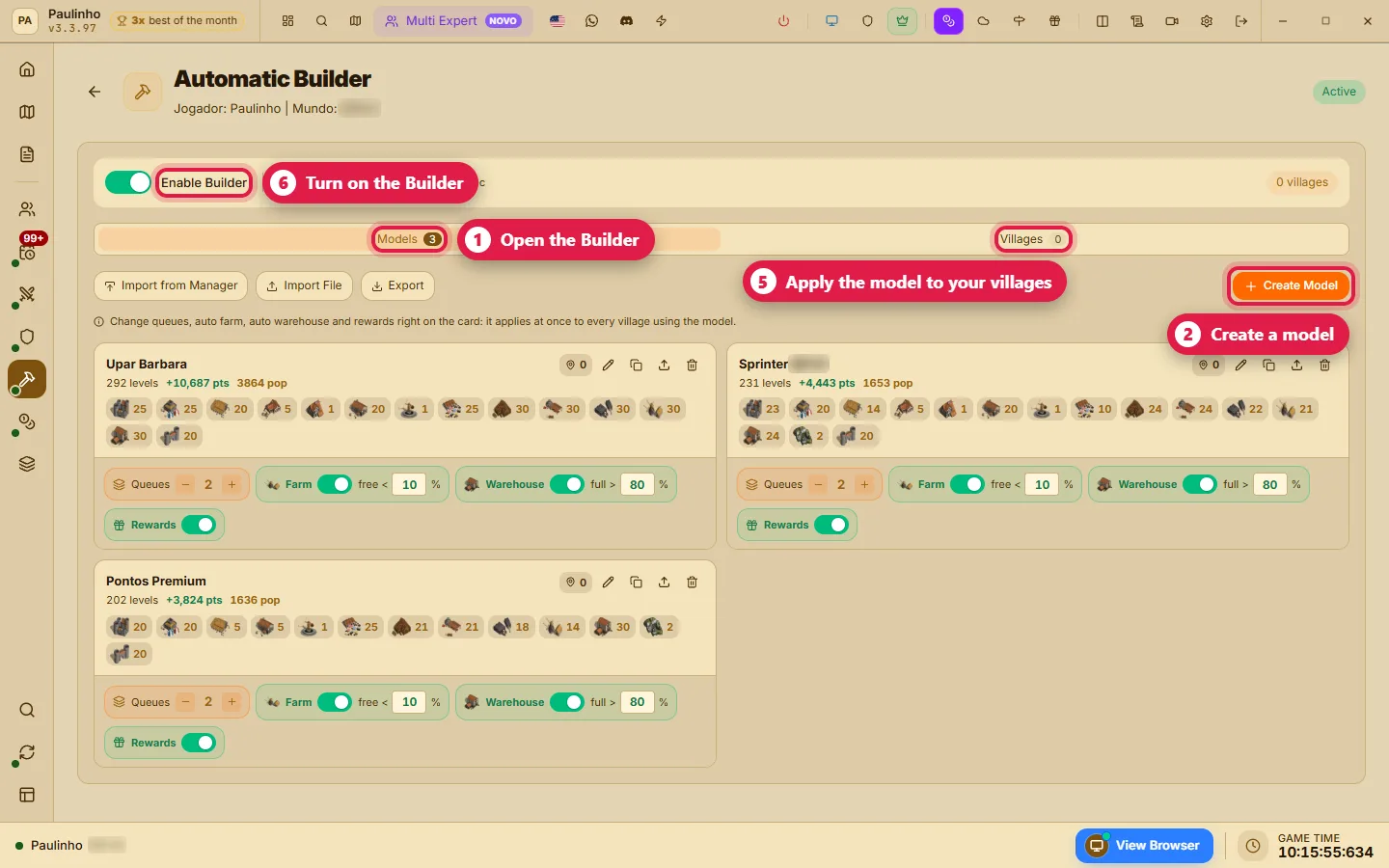
In the account sidebar, click Builder. The screen has two tabs: "Models" and "Villages".
-
Create a model
On the "Models" tab, click "Create Model" and give it a name (for example "Offensive village"). If you already have a template in the game's Account Manager, use "Import from Manager" and paste the Base64 code exported from there.
-
Build the queue
In the "Buildings" list, click each building to add it to the "Queue". Under "Levels per click:", choose how many levels each click adds. The queue can be viewed "Grouped" or "Expanded" to order it level by level, and supports undo (
Ctrl+Z) and redo (Ctrl+Y). -
Set the automatic options
Under "Automatic options", set the "Simultaneous queues" (default 2), "Auto Farm" (raises the farm when free population drops below the percentage; default 10%), "Auto Warehouse" (raises the warehouse when resources go above the percentage; default 80%) and "Collect rewards". Click "Save model".
-
Apply the model to your villages
On the "Villages" tab, pick the group, click the rows to check the villages (Shift+click checks a block), pick the model and click "Apply". The "Without model" filter shows which villages still have no queue.
-
Turn on the Builder
Turn on "Enable Builder" and set the "Interval:" (default 10 minutes).
What each option does
| Option | What it is for |
|---|---|
| Quick settings on the model card | Queues, farm, warehouse and rewards change right on the card and apply at once to every village using the model. |
| New village gets: | A model applied on its own to villages that show up from now on (conquered or founded). The current ones stay as they are. |
| Export to the game's Construction manager | Creates a template in the game's Account Manager with the same name and the same queue. Needs the account connected. |
| Import File and Export | Saves the models to a file and brings them back, to move them to another account or another PC. |
| Duplicate | Copies a model so you can make a variation without building the queue from scratch. |
Tips
- Build one model per role (offensive, defensive, noble) instead of one per village: editing the model applies to every village that uses it.
- Keep Auto Farm and Auto Warehouse on. Without them, the queue stops when population or warehouse space runs out.
Common problems
I see "configured villages no longer exist".
These are villages you lost or that changed. Click "Remove all" in the warning to clean them up.
The model imported from the Manager doesn't show up.
Make sure you pasted the whole Base64 code exported from the game's Account Manager. The model comes in named "Imported from Manager".
Exporting to the Manager failed.
The account must be connected and the model cannot be empty. The error message shows on the screen.
See also
Do not have PS Evolution yet?
The download is free: download it, create your account inside the app and try everything for 24 hours, no card.