 PS Evolution
Tribal Wars reports: create village notes in bulk
The Reports screen reads the account's reports straight from the game, split by the same categories as the game screen. From it you create the note of the report's village (offensive or defensive, wall, watchtower, church), one at a time or in bulk, schedule a command against the target and delete reports.
The note goes to the report's village: the target village when you attacked or on forwarded reports, and the origin village when you were attacked. It replaces the note the village already had. The account must be connected.
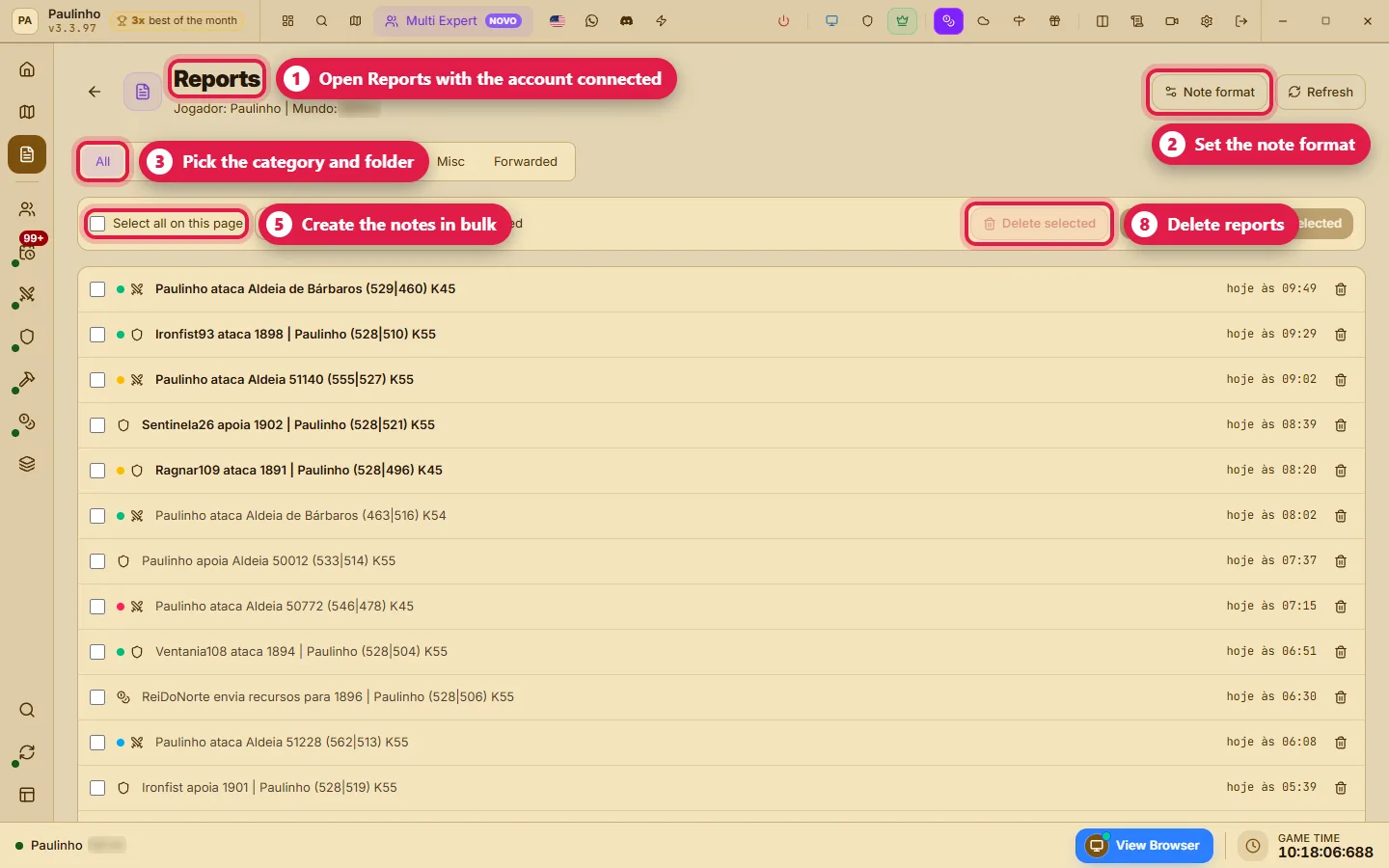
Step by step
-
Open Reports with the account connected
In the account sidebar, click Reports. Without the session, the screen asks you to connect: "Connect the session to read the reports and generate village notes".
-
Set the note format
Click "Note format". Type the "Signature" that goes at the end of the note (empty by default) and check "Include scouted buildings (wall, watchtower, church)" and "Include the report export code". These choices are kept for next time.
-
Pick the category and folder
Use the "All", "Attacks", "Defenses", "Support", "Trade", "Misc" and "Forwarded" tabs. If the account has report folders in the game, the selector on the right switches between "Default folder" and the others. The arrows at the bottom change pages.
-
Open a report and create its note
Click the report. The window shows the report, the village classification (Offensive, Defensive, Probably Offensive, Probably Defensive), which village the note goes to and the "Note preview". Click "Generate a note from this report" to save the note in the game.
-
Create the notes in bulk
Select reports with each row's checkbox, with "Select all on this page" or with "Select all in this category", which goes through every page of the open category. Then click "Generate notes for the selected". A bar shows the progress, and "Stop" interrupts the batch.
-
Check the ones left without a note
At the end, the app says how many notes it created and lists the reports that ended up without a note, with the reason for each. The ones that worked leave the selection; the ones that failed stay selected so you can try again.
-
Schedule a command against the target
In the report window, "Schedule command" takes the coordinate of the other side of the battle to the account's Scheduler, already filled in as the target.
-
Delete reports
Use the row's trash icon, "Delete" in the report window or "Delete selected" for several. The app asks for confirmation: the deletion happens in your game account and cannot be undone. Then it reloads the list and says how many were actually removed.
What each option does
| Option | What it is for |
|---|---|
| Signature | Bold text at the end of the note. Empty, the note has no signature. |
| Include scouted buildings | Adds to the note the watchtower, wall and church seen by the report's scouting, when it has them. |
| Include the report export code | Adds the report's export code at the end of the note, below the battle date. |
| Select all in this category | Reads the open category page by page and selects every report, up to 100 pages. Clicking again during the search stops it. |
| Generate notes for the selected | Opens each selected report, builds the note and saves it to the village, with a short pause between them. |
| Schedule command | Sends the coordinate of the report's target to the Scheduler. |
Tips
- The selection is kept when you change pages, so you can gather reports from several pages into one batch. Changing category or folder clears the selection.
- In the note, an offensive village shows in red and a defensive one in green. For a defensive village, the note also says how many defensive fulls the report shows.
- To map an area before an attack, filter "Attacks", select all in the category and create the notes: every scouted village gets its classification in the note.
Common problems
I see "This report has no battle data".
Trade, support and other notice reports have no battle, so a note cannot be created from them. In a batch they show as "report without battle data".
The batch finished with reports without a note.
See each reason in the list at the end: "could not open the report", "report village not identified" or "the game refused the note". The ones that failed stay selected; click "Generate notes for the selected" again.
The village's old note is gone.
The created note replaces the current note of the report's village. If you keep your own notes on villages, create notes only from the reports you want to update.
I deleted it and the report is still in the list.
If you see "The game did not delete the selected reports", the game refused the request. Click "Refresh" and try again.
I see "Could not read the reports".
Check that the session is connected and click "Refresh".
See also
Do not have PS Evolution yet?
The download is free: download it, create your account inside the app and try everything for 24 hours, no card.