 PS Evolution
Tribal Wars messages in PS Evolution: read, reply and send
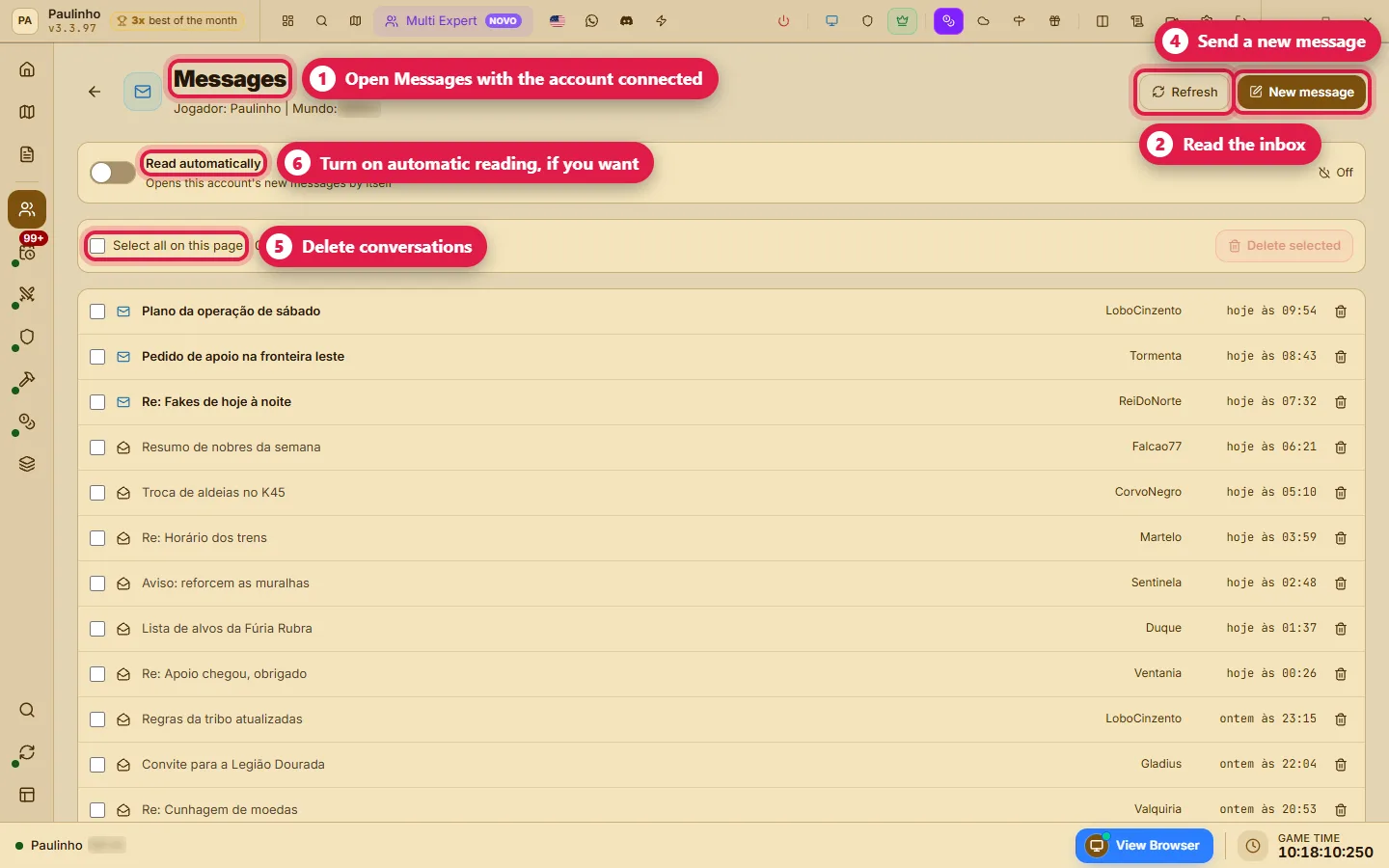
The Messages screen reads the account's inbox straight from the game. From it you open conversations, reply, write a new message to any player and delete conversations, one at a time or several at once. Messages support the game's BBCode.
At the top is the "Read automatically" switch, so the app opens this account's new messages by itself. The account must be connected.
Step by step
-
Open Messages with the account connected
In the account sidebar, click Messages. Without the session, the screen asks: "Connect the session to read, reply to and send in-game messages".
-
Read the inbox
Each row shows the subject, the player and the date. Unread ones are highlighted, and the bar above says how many there are ("new"). Click "Refresh" to read the inbox again.
-
Open and reply to a conversation
Click the row to open the conversation, with each message and who wrote it. Opening marks it as read in the game. Type in the field below and click "Reply", or press
Ctrl+Enter. -
Send a new message
Click "New message". Fill in "To (player name)", the "Subject" and the message, which supports the game's BBCode. Click "Send" or press
Ctrl+Enter. Without a recipient or text, the button is greyed out. -
Delete conversations
Use the trash icon on the row or in the open conversation to delete one. For several, check the boxes (or "Select all on this page") and click "Delete selected". The app asks for confirmation, because the deletion happens in your game account and cannot be undone.
-
Turn on automatic reading, if you want
Turn on "Read automatically" at the top so the app opens this account's new messages by itself. Conversations opened this way get the "read automatically" tag.
What each option does
| Option | What it is for |
|---|---|
| Read automatically | Opens this account's new messages by itself. The line next to it shows the status and how many were read today. |
| New message | Writes to a player by name, with subject and text in the game's BBCode. |
| Reply | Replies to the open conversation. The conversation reloads with your reply. |
| Delete selected | Deletes the selected conversations. If the game refuses any, the notice says how many were deleted and how many were refused. |
Tips
- Use automatic reading when you don't want an "are you there?" to stay without a read mark while the automations work.
- The screen shows the inbox. To write down what you learned from a player's reports, use the Reports screen, which saves the note on the village.
Common problems
I see "Could not read the messages".
Check that the session is connected and click "Refresh".
Sending failed.
The "Could not send" notice includes the reason the game gave. Check the player name in "To" and try again.
The conversation does not open.
If you see "Could not open the conversation", the game did not answer. Close it, click "Refresh" and try again.
See also
Do not have PS Evolution yet?
The download is free: download it, create your account inside the app and try everything for 24 hours, no card.