 PS Evolution
Tribal Wars bot account not connecting: how to fix it in PS Evolution
Since 10/13/2026, Tribal Wars asks for a check (captcha) at login. Because of that, the app no longer logs in on its own: it opens the game's login page with your username and password already filled in, you click log in and complete the check, and the app saves that login and connects the account.
On later connections the app reuses the saved login and asks for nothing. The window only comes back when the game rejects the saved login. The app never touches the captcha: you solve it yourself.
When an account does not connect, the reason is written below its row on the Dashboard. This guide explains each message and what to do.
Step by step
-
Read the message on the account row
An account with a problem shows an alert and the reason in a line of text right below it, with the "Why?", "Fresh login" and "Got it" buttons. The "Captcha" tab and the "N accounts need you" notice at the top group the stopped accounts.
-
Log in in the game window
If the message asks you to log in in the game window the app opened, go to that window (at the top it says your username and password are already filled in). Click log in, complete the check and wait: the app closes the window and connects the account on its own.
-
Closed the window or it disappeared? Click Start
The window stays open for up to 20 minutes waiting for the login. If it closed, the account shows a message saying it needs a game login and that you should click Start to open the login window. Turn the connection switch on again and the window reopens, already filled in. Turning the account off gives up on the wait.
-
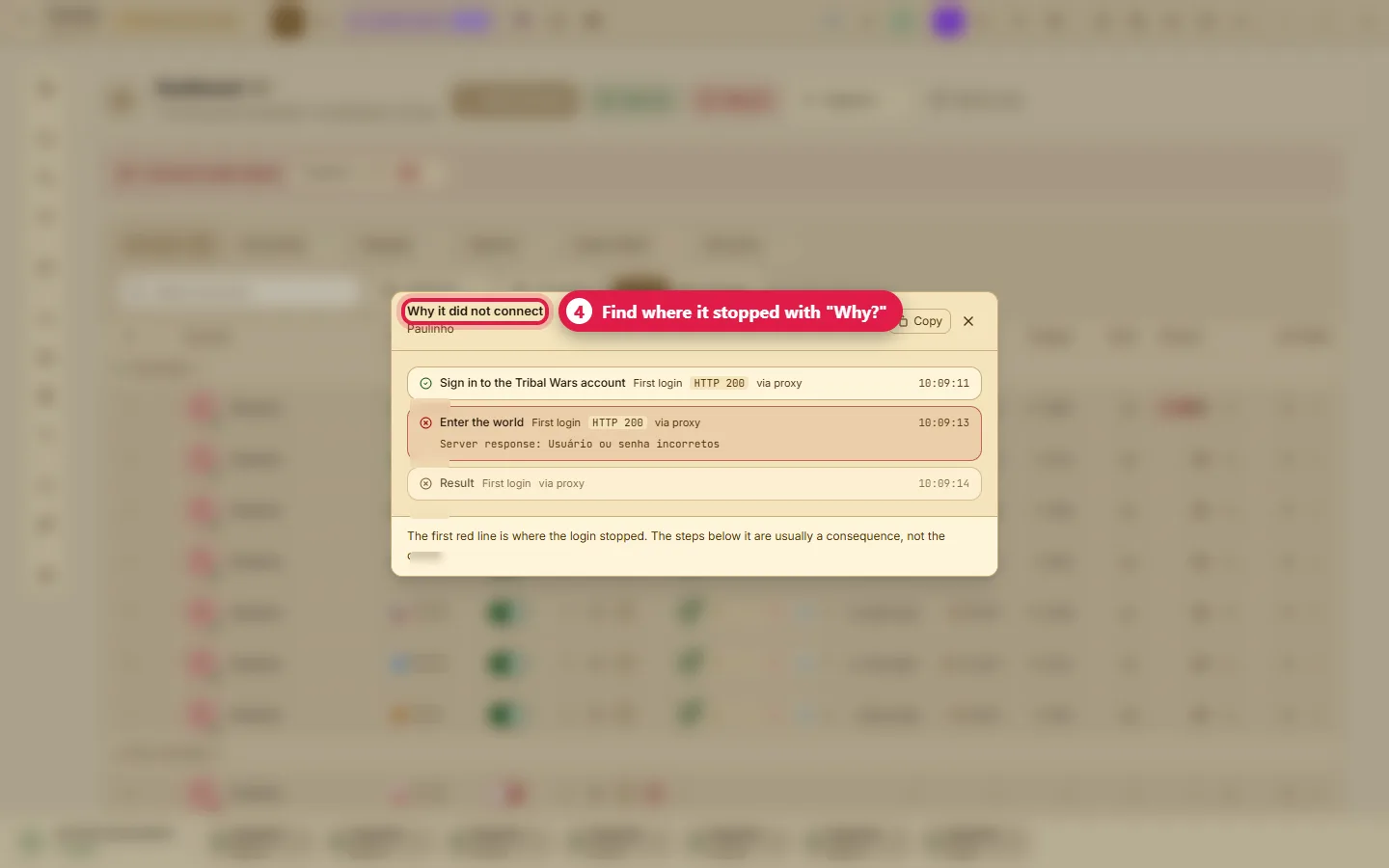
Find where it stopped with "Why?"
The "Why?" button opens "Why it did not connect", with each login step (logging in to the account, using the saved login, entering the world) and the server's response. The first red line is where the login stopped; the lines below are usually a consequence. Use "Copy" to send it to support.
-
Check the proxy
Messages that mention "proxy" are almost always fixed by changing or testing the proxy: in Dashboard > Organize > Proxies, click "Test connection". A proxy that is down or has the wrong username and password keeps the account from opening.
-
Last resort: "Fresh login"
The "Fresh login" button drops the connection, deletes the account's saved session and cookies and connects again. Use it when the account stays stuck on an error even after you fixed the password, world and proxy.
What each option does
| Option | What it is for |
|---|---|
| Why? | Shows the account's login log for this run of the app, step by step. |
| Fresh login | Deletes the account's saved session, browser state and cookies and reconnects. |
| Got it | Removes the notice from the row after you read it. It does not fix the problem by itself. |
| Resume | Shows up when the session was opened in another browser. Reconnects the account right away. |
Tips
- Do not log in with your username and password to the same account in another browser while the app is running: the game allows one browser per account, and the new login kicks out the app's. To play alongside, use "View browser".
- A captcha that shows up in the middle of the game (anti-bot check) is different from the login captcha. Solve it through the app's "View browser", never by logging in with your password in your own browser.
- When several accounts ask for login at the same time, the windows open one at a time. The others say their window opens as soon as the previous account's login is done.
Common problems
The account says its password is not stored on this computer and asks you to click Edit
The account came from another computer or was added without a password. Click the "Configure" gear, fill in your game "Username" and "Password", save and turn the account on again.
I clicked log in and the game said the password is wrong
Fix the password right in the game window (the app does not overwrite what you type) and log in. Then update the password in "Configure" so it is right next time.
The account says you have not started playing in world ... yet
Your account exists, but it has no village in that world. The app opens the account's browser: enter the world, pick the region where you want to start and confirm. Once the first village exists, the account reconnects on its own.
The login to this world was refused and automatic reconnection was cancelled
The world refused the entry, which usually means the wrong world in the account details. Open "Configure", check the server and world and turn the account on again.
The login on the game page worked, but the world refused the entry
The login went through, but the world did not accept it. The game's response shows in "Why?". Check the account's world, try "Fresh login" and, if it keeps happening, send the copied log to support.
"This account's proxy rejected the username and password" or "This account's proxy did not respond"
Check the proxy details and test it in Organize > Proxies. If it is down, switch to another one in "Configure" > "Proxy" before connecting. A store proxy that has expired shows "Proxy expired on ..." and needs to be renewed or replaced.
DNS failure, "security failure" or "The connection to the game server dropped midway"
It is usually your internet, the proxy or the antivirus intercepting the connection. Check all three. The account retries brief network failures on its own.
The account shows "Opened in another browser"
Someone logged in to this account somewhere else (almost always you, in your own browser) and the app session dropped several times in a row. The app reconnects on its own at the time shown; to reconnect now, click "Resume". To play without dropping the app, click "How to play alongside".
The account says the session dropped several times in a row right after reconnecting
To avoid too many logins, automatic reconnection is paused for a few minutes. Open the account's "View browser" and check whether the game is showing a captcha.
"Captcha in the game on ..." and the tools stopped
The game asked for the anti-bot check. Click "Solve now" (or "Open the browser and solve it"), solve the check in the game window and come back; the app checks on its own and unlocks the tools. To speed it up, use the "I solved it" button to check again.
The row shows "Limit reached"
You went over the number of accounts your plan allows connected at the same time. Turn another account off or use "Increase limit".
"This computer is only monitoring..."
With Online Mode, accounts can only be connected on the Main computer. Turn the account on there or make this computer the Main one.
My plan expired and the accounts disconnected
When the license expires, automations stop and accounts are disconnected. Renew in "My subscription" and turn the accounts on again.
The account needs a game login, but there is no screen to do it
The account is in Cloud Mode and the server has no screen for the captcha. Open the app on your computer, start the account, log in in the game window and then start the account in the cloud again.
The game screen loaded but the data did not become available
It may be a captcha or a block on the page. Open the account's "View browser" to see what the game is showing.
See also
Do not have PS Evolution yet?
The download is free: download it, create your account inside the app and try everything for 24 hours, no card.