 PS Evolution
Auto Apply Models: Account Manager templates on several accounts
Auto Apply Models is the all-accounts view of Auto Manager. For each account, you link game village groups to Account Manager templates (buildings, troops and research), and the app reapplies those templates by itself at the interval you choose. The setup is the same as the account's Auto Manager: changing it on one screen changes it on the other.
The templates belong to the game. The app does not build any queue here: it only assigns the template to the group's villages. That is different from Builder and Recruitment, where the queue and the goals are built in the app and the app itself builds and recruits.
The game requires an active Premium Account and Account Manager. The screen belongs to the Auto GC module: the Complete plan includes it; on a plan built from modules, it opens with the notice that the module is not part of your plan.
Step by step
-
Create the templates in the game's Account Manager
In each account's Account Manager, create the village (construction), troop and research templates you will use. If you already build the queue in the app's Builder, use "Export to the game's Construction manager" to create the template there with the same queue.
-
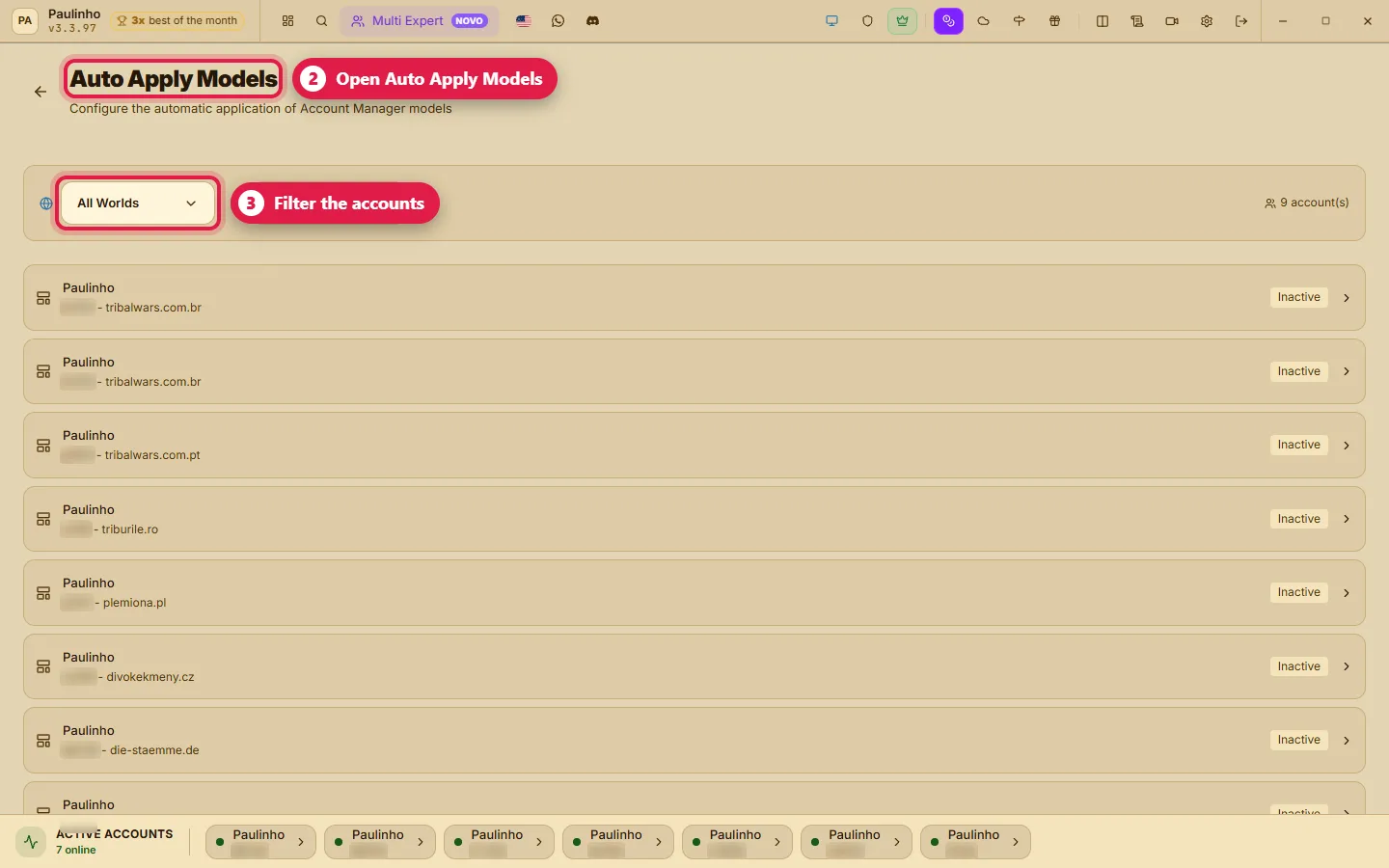
Open Auto Apply Models
Press
Ctrl+K, type "models" and pick Auto models in the Utilities group. The "Auto Apply Models" screen lists every account, with the number of mappings and the "Active" or "Inactive" badge.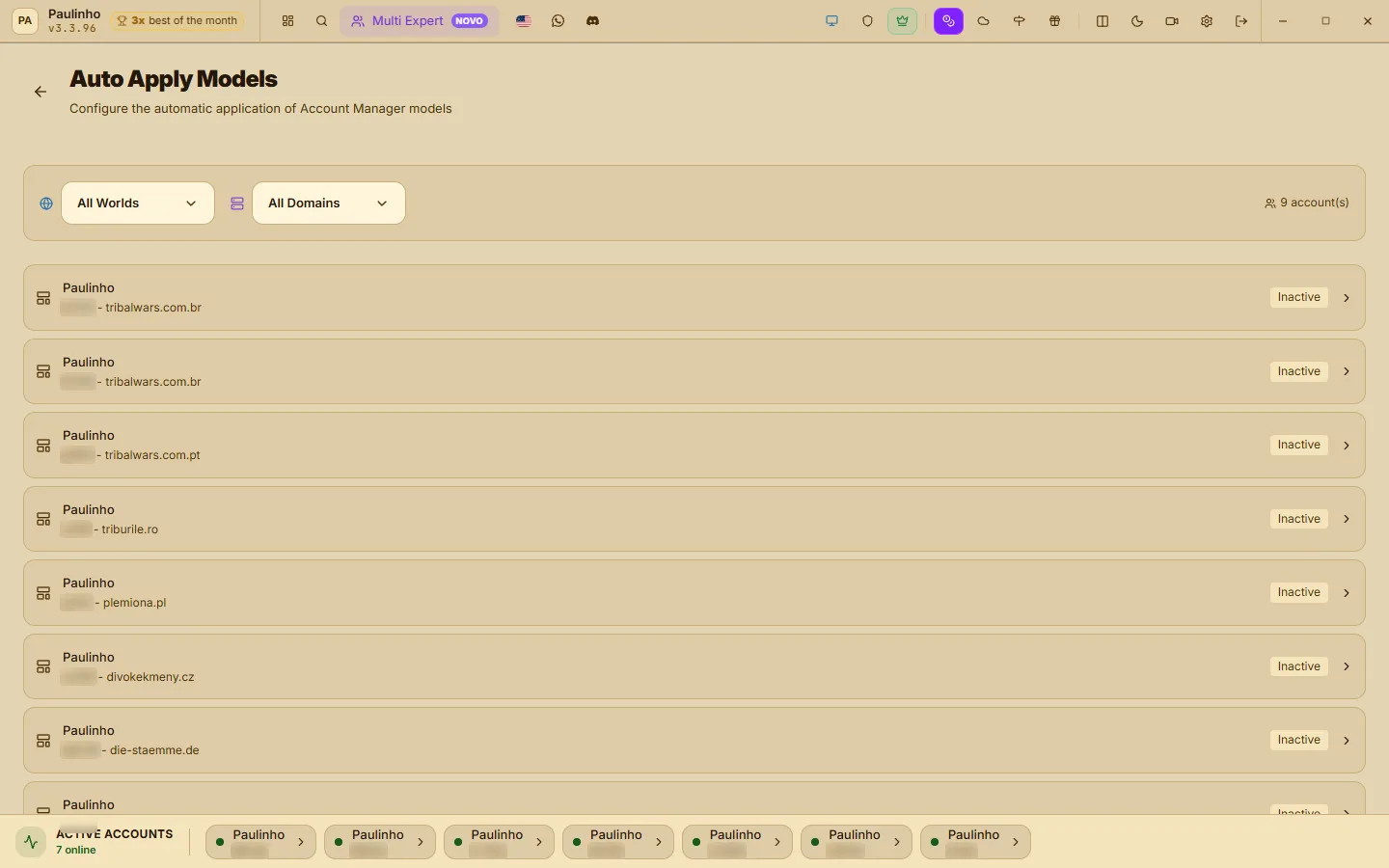
Open Auto Apply Models -
Filter the accounts
At the top, use "All Worlds" and "All Domains" to see only the accounts of one world or one server. The number of accounts in the list shows on the right.
-
Open the account with the session connected
Click the account to open its card. The app reads the groups and the Account Manager templates from the game; meanwhile you see "Loading groups and models...". The account must be connected for this reading.
-
Link groups to templates
Pick the "Buildings", "Troops" or "Research" tab and click "Add Mapping". On the new row, pick the group on the left and the template on the right. Repeat for each group and each type. The trash icon removes the row.
-
Enable it and set the interval
Turn on "Enable Auto Apply" and set the "Application Interval (minutes)" (default 120). Everything is saved right away. From then on, at every interval the app applies all of the account's mappings, in the order buildings, troops and research.
What each option does
| Option | What it is for |
|---|---|
| All Worlds and All Domains | Filter the account list by world and by game server. |
| Enable Auto Apply | Turns on automatic reapplying for the account. It is the same switch as the one at the top of Auto Manager. |
| Application Interval (minutes) | How often the templates are reapplied. One interval covers all three types. Default: 120 minutes. |
| Buildings, Troops and Research | One tab per Account Manager template type, with that type's group -> template rows. The number on the tab is how many rows it has. |
| Add Mapping | Creates a group -> template row. It is greyed out when the account has no template of that type in the Account Manager. |
Tips
- For each group, pick one path: the Account Manager templates here, or the Builder queue and the Recruitment goals in the app.
- On the Auto Manager screen each column has its own on and off switch, but it only applies to that screen's "Apply All". Automatic reapplying applies every mapping. To stop one type from being reapplied, remove its rows.
- The game's dynamic groups work: the app reads who is in the group at the time it applies.
- If the account has many groups and the round does not finish in time, the groups left out get the template in the next round.
Common problems
The account stays on "Loading groups and models...".
The app needs to read the groups and templates in the game. Connect the account and check that Premium Account and Account Manager are active on it: without the Account Manager, the app loads nothing for that account.
The "Add Mapping" button is greyed out.
The account has no template of that type in the Account Manager. Create the template in the game, leave the screen and open the account again.
A group did not get the template.
Check that the group has villages in the game. An empty group gets nothing: the round notes the reason and moves on to the other groups.
The account shows "Active" but nothing happens.
Reapplying only runs with the account connected, an active Premium Account in the game and at least one mapping, and only after the interval has passed since the last round.
See also
Do not have PS Evolution yet?
The download is free: download it, create your account inside the app and try everything for 24 hours, no card.