 PS Evolution
Getting started with PS Evolution: the Dashboard, the menu and Ctrl+K search
After you log in, the app opens on the Dashboard: the list of all your game accounts, with the status of each one and the buttons to start, stop and configure them.
Each account has its own screen, with the tools menu (Auto Farm, Builder, Recruitment, Scheduler and the rest). If you cannot find something, Ctrl+K search finds any screen by name.
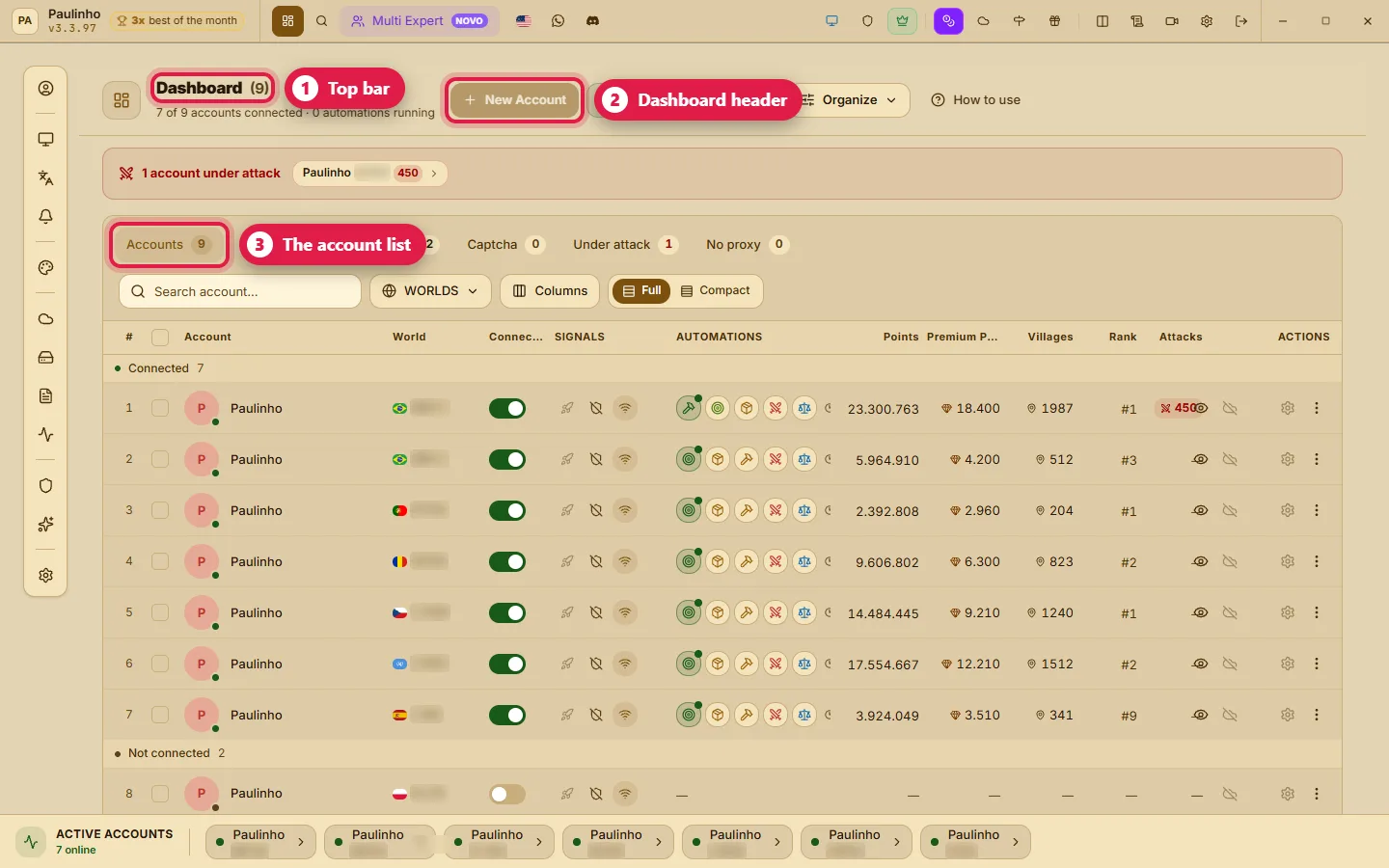
Step by step
-
Top bar
From left to right: "Dashboard", "Search" (Ctrl+K), "Map", the "Multi Expert" tab, the community shortcuts (WhatsApp and Discord), your plan badge, "Buy PP", "Referrals", split view (two screens side by side), streamer mode (hides names and coordinates), "Settings" and "Logout".
-
Dashboard header
Shows the total number of accounts and a summary like "3 of 5 accounts connected · 12 automations running". The buttons are "New Account", "Start all", "Stop all", "Organize" (Proxies, Groups and Profiles) and "How to use", which opens a guided tour of the screen.
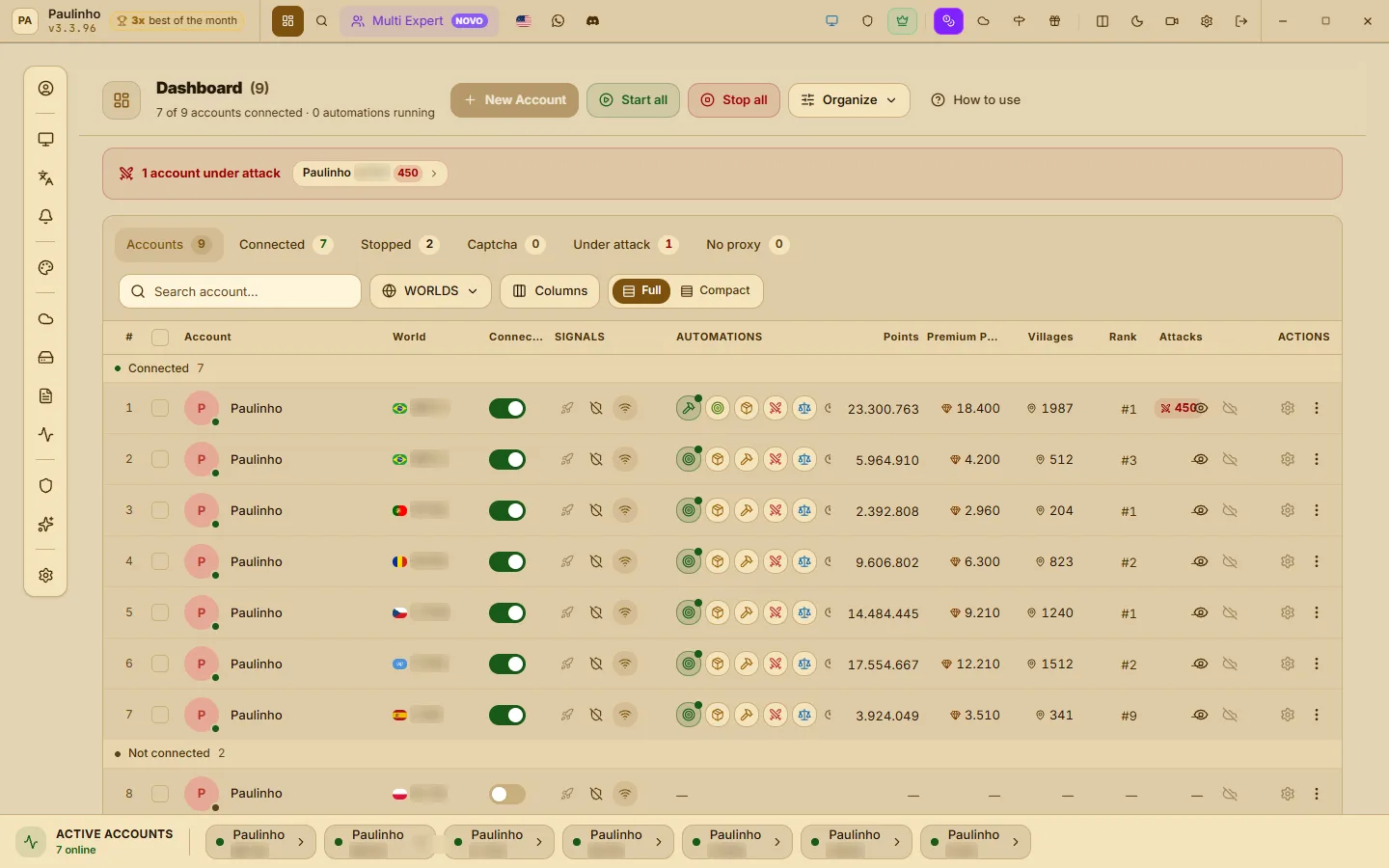
Dashboard header -
The account list
The tabs at the top filter the list: "Accounts", "Connected", "Stopped", "Captcha", "Under attack" and "No proxy". On each row, the switch in the "Connection" column turns the account on and off. The icons show auto-start (rocket), safe mode (shield) and proxy (wifi signal). On the right you find "View browser" (eye, when the account is connected), the favorite star, the "Configure" gear and "More actions".
-
Open an account
Click the account row to open its screen. On the left is the tools menu for that account. It can show as a list, a side dock with icons only, or a bottom dock; you can switch it in Appearance. When the account is connected, the footer shows "View Browser" and the game time.
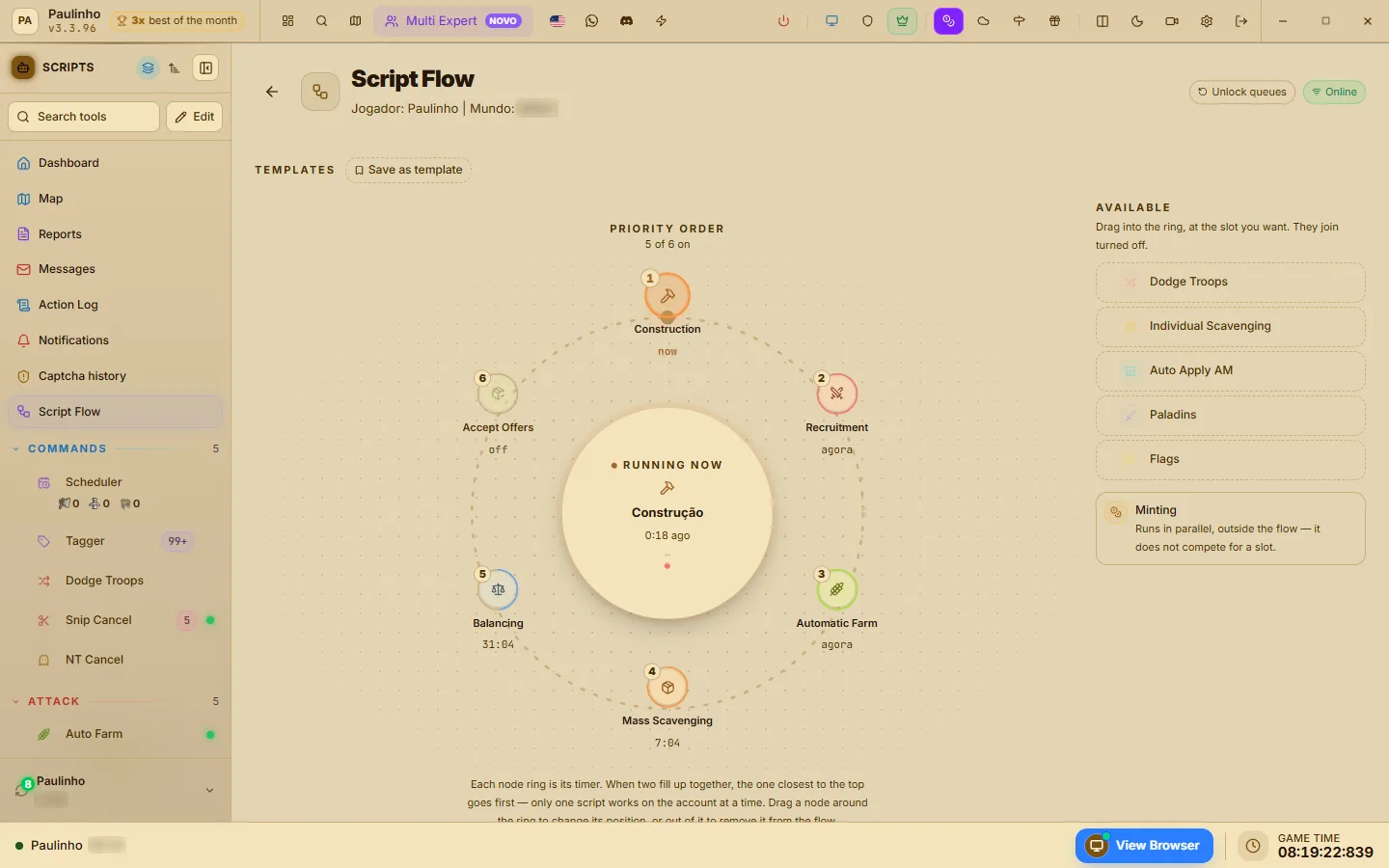
Open an account -
Find any tool with Ctrl+K
Press Ctrl+K or click "Search". Type the name of a tool, a group (for example "defense") or an account. Results come under "Account screens", "Utilities", "App" and "Accounts". To see an account's tools in the search, open the account first.
What each option does
| Option | What it is for |
|---|---|
| Shortcut dock | Column of icons on the left of the Dashboard with settings shortcuts (theme, language and more). "See all settings" opens the full screen. |
| Pin to the top of the menu | In the search, pins a tool to the top of the account's side menu. |
| How to use | Guided tour: adding accounts, setting up a proxy, starting, opening an account, searching and Multi Expert. |
| Safe | Safe Mode shortcut in the top bar, with a "Configure" button. |
Tips
- With a narrow window, the top bar shows icons only. Hover over a button to see its name.
- The "Captcha" tab groups the accounts stopped by a game check: start there when something is not running.
Common problems
The "New Account" button and the connection switch are grayed out
This computer is set as Secondary (Online Mode) and only follows the Main computer. Connecting accounts and editing them can only be done on the Main computer; you can still adjust tool settings from here.
The search says "Open an account to see its tools here."
Tools are per account. Click an account on the Dashboard and open the search again.
See also
Do not have PS Evolution yet?
The download is free: download it, create your account inside the app and try everything for 24 hours, no card.