 PS Evolution
How to schedule a noble train with clearing and support in Tribal Wars
A clean conquest has three parts: the clearing nuke that kills the defense, the nobles landing right after, and the support that holds the village afterwards. In the Scheduler's advanced mode, each part is a module with its own origins, troops and time, and everything is scheduled at once.
The gap between one nobleman and the next follows the server limit: the app reads this value from the world (100 ms if it cannot read it), because the game rejects commands closer than that.
For a simple train from a single village you don't need advanced mode: pick "2 Nobles" to "5 Nobles" as the command type.
Step by step
-
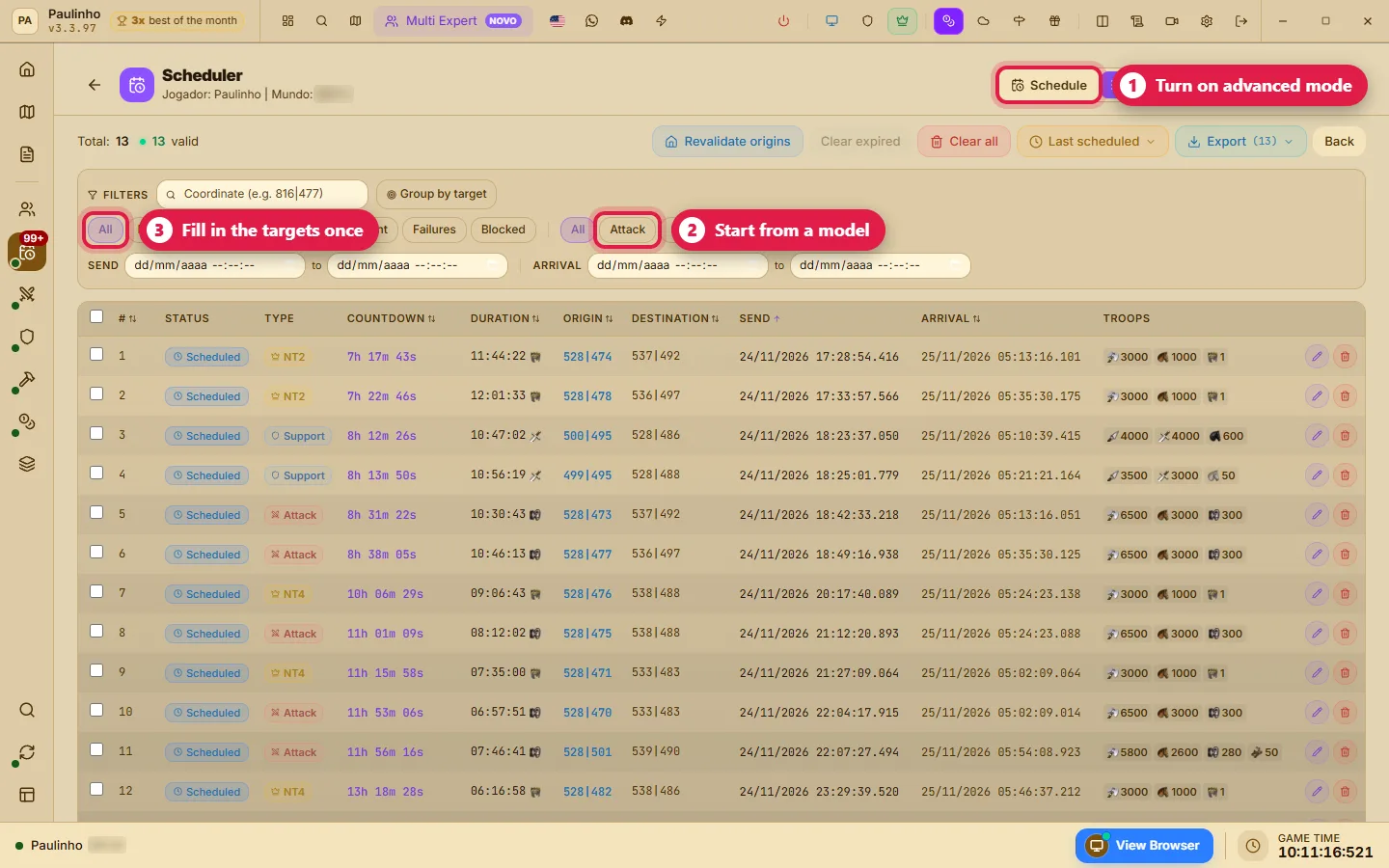
Turn on advanced mode
In the "Schedule" tab, click "Advanced mode". The title changes to "Full operation" and the screen becomes a list of modules.
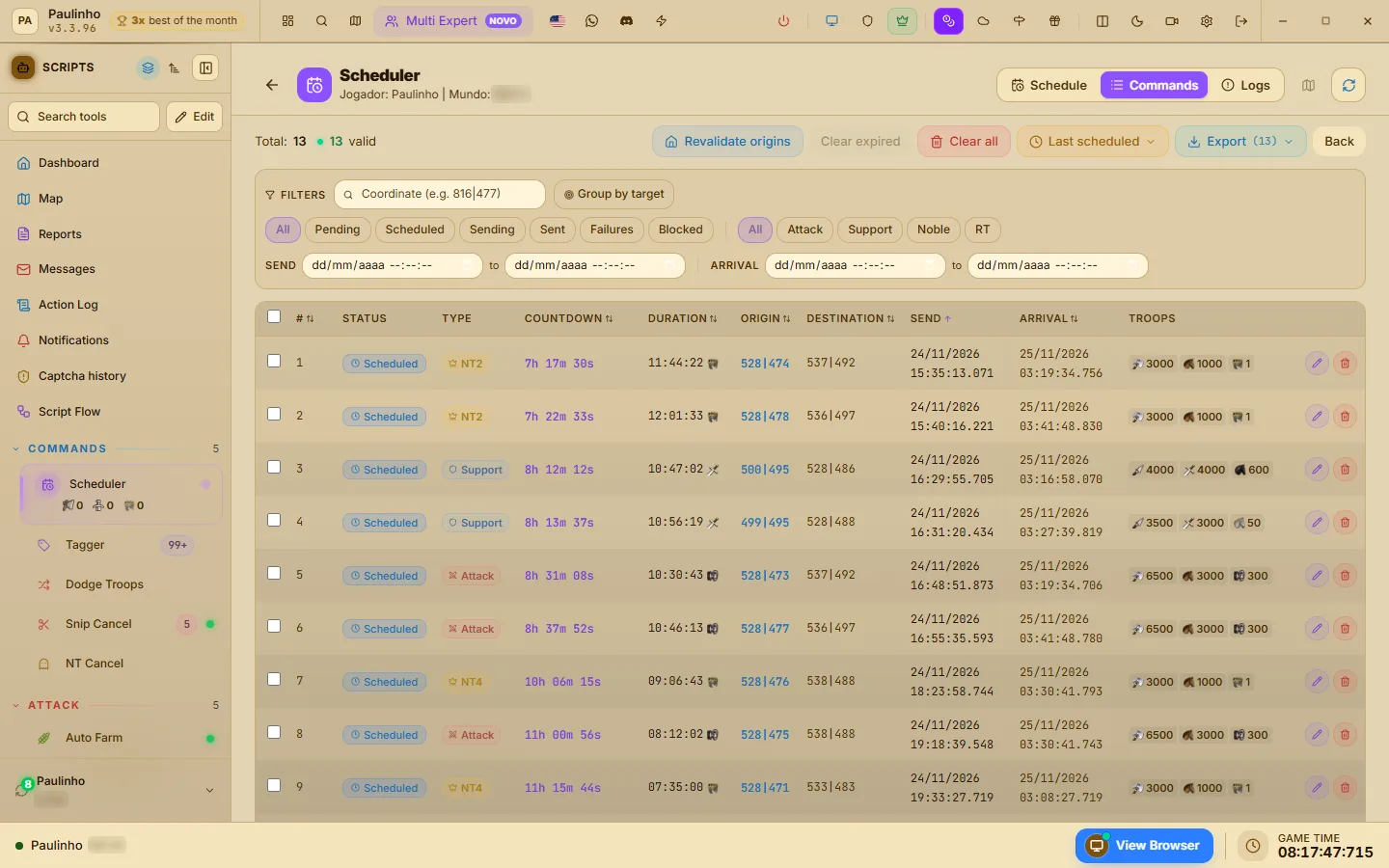
Turn on advanced mode -
Start from a model
Under "Model", pick "Attack", "Attack + noble", "Attack + noble + support", "Noble only" or "Support only". The operation is built with those modules, keeping whatever is already filled in. Use "Add module" for more clearings, nobles or support.
-
Fill in the targets once
Paste the targets into the first module and click "All" to use the same targets in every module.
-
Set up each module
In each module, pick the origins, the troops, the distribution and how many commands per target. In the nobles module, set how many nobles each command carries and the arrival of the first nobleman; the next ones land at the server gap. The copy time button brings in another module's arrival, and "Duplicate" creates a matching module so you only change the origins.
-
Read the module warnings
Each module shows how many commands it will create and what is missing: targets, origins, troops, an origin beyond noble range, an arrival in a blocked range or a time that no longer works. Fix the warnings before scheduling.
-
Check the diagram and schedule
The "Operation diagram" shows the sequence of arrivals on each target. The list icon opens the details of the whole operation without touching the queue. When it looks right, click "Schedule operation".
What each option does
| Option | What it is for |
|---|---|
| Cleanup | Attack that clears the village before the nobles. |
| Nobles | Noble train: one nobleman per command (or as many as you choose), landing in sequence, at the server gap. |
| Supports | Support that lands right after the conquest. |
| Unique origin | Each village goes into one module only: later modules don't repeat an origin already used. |
| Skip scheduled | Does not use villages that already have a command in the queue. |
Tips
- If the support time falls before the last nobleman, the app warns "Support arrives before nobles" and asks whether you want to schedule anyway.
- In the simple train ("2 Nobles" to "5 Nobles"), every wave needs the same slowest unit, or the faster ones land early.
- To keep the clearing from landing after the noble because of arrival drift, see the "Fix arrivals outside the margin" option in the precision tutorial.
Common problems
The module says "No origin reaches the target at the requested time".
Every origin would have to leave before now to land on time. Set a later arrival or use closer origins.
The nobles module says the origins are out of range.
The distance is over the noble limit (70 fields by default, under "Extra Settings" > "Noble range"). Change the origins or raise the limit if your world allows it.
All origins were dropped by the origin rules.
The "Unique origin" or "Skip scheduled" options removed every village. Turn one of them off or add origins.
See also
Do not have PS Evolution yet?
The download is free: download it, create your account inside the app and try everything for 24 hours, no card.