 PS Evolution
How to farm player villages in Tribal Wars automatically
Farm Players attacks a list of player villages in rotation. You choose where the attacks leave from, what stays home, the troops for each attack and how often to repeat. The app reads the reports to show losses, defense and loot for each target.
The tool requires a Tribal Wars Premium Account and an active account session.
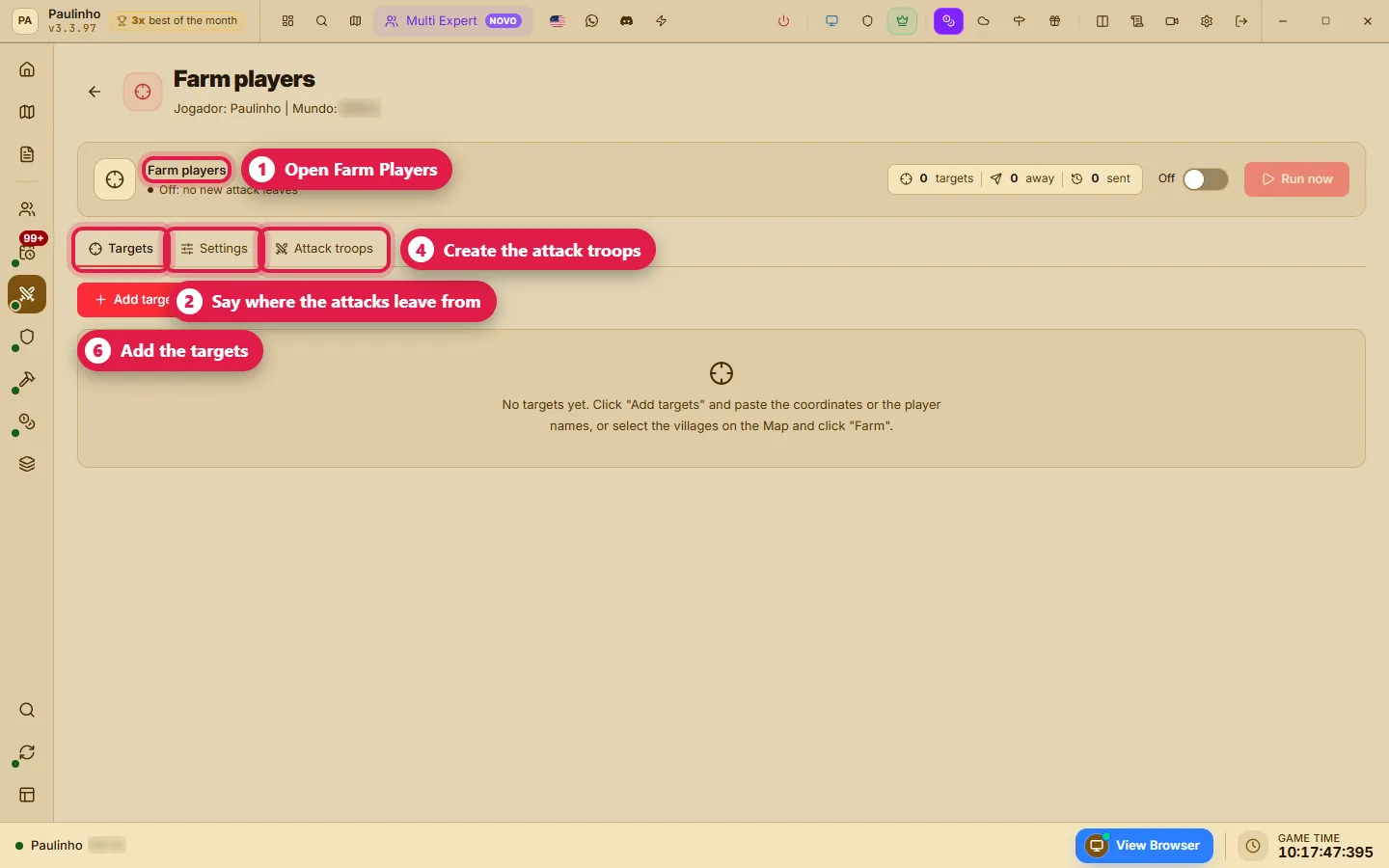
Step by step
-
Open Farm Players
Pick Farm Players in the sidebar. The screen has the "Targets", "Settings", "Attack troops" and "Reports" tabs, and at the top the "On" or "Off" switch and the "Run now" button.
-
Say where the attacks leave from
In the "Settings" tab, under "1. Where the attacks leave from", pick the in-game group. Use every village in the group, or "Pick some" and click "Read the villages of the group" to tick only the ones that may attack.
-
Set the reserve
Under "2. What stays home (reserve)", set what no attack touches. "Copy from AutoFarm" brings in the reserve already saved there, and "Give own reserve" lets one village have its own.
-
Create the attack troops
In the "Attack troops" tab, create named compositions (Light, Medium and Scout come ready). Type the amount for each attack, or click the unit picture to send everything at home. With catapults, pick the building and when they go along.
-
Pick the pace
Under "4. How often", pick "After the return" (waits for the round trip) or "Every" (counts from departure) and the minutes. Adjust "Attacks at the same time on the target", "Pause between one send and the next", "Attacks per round" and "Read the reports".
-
Add the targets
In the "Targets" tab, click "Add targets" and pick "By coordinates" or "By a list of names" (all villages of each player go in). You can also select villages on the Map and click "Farm". Each target can have its own troops, pace and origin.
-
Turn it on and follow
Turn the tool on at the top. The summary shows targets on, attacks out and total sent. The "How it will go" block shows, for one target, where the attack leaves from, when it lands, when it returns and when it leaves again.
What each option does
| Option | What it is for |
|---|---|
| Respect each player night bonus | During the player's window no attack leaves against them, and anything that would land in it waits. The time is read from the game map and can be changed in the Player column. |
| Automatic or fixed origin | Automatic uses the closest village with the troops at home. Fixed uses only that one, and the target waits for it. "Distribute" fixes the closest free origin for each ticked target. |
| Attacks at the same time on the target | With 1, the target waits for the previous attack to return. With 2 or more, another one leaves first. |
| Attacks per round | How many leave at once; the rest wait for the next round. |
| Read the reports | Keeps the last five reports of each target, with losses, defense and loot. |
Tips
- Turning the tool off only stops new attacks: what already left keeps going in the game.
- In the "Reports" tab, "open" shows the full report of each arrival.
Common problems
The target stays on "Waiting for the origin".
No origin has the attack troops at home, outside the reserve, or the fixed origin does not have them. Adjust the troops, the reserve or switch to Automatic origin.
I see "No player with those names in the world."
Check the spelling of the names. Use one name per line, or separate them with commas, semicolons or colons.
The target is "Waiting for the return".
It already has the max number of attacks at the same time. To send another one sooner, raise "Attacks at the same time on the target" in Settings.
See also
Do not have PS Evolution yet?
The download is free: download it, create your account inside the app and try everything for 24 hours, no card.